Newsletter Subscribe
Enter your email address below and subscribe to our newsletter


Let’s set the scene. You’ve prepared for your doctor’s appointment. You’re sitting at your computer. You click the magical “Join Call” link. And then… nothing. Or worse, you see the doctor, but they sound like a dalek from Doctor Who, and your screen is frozen on an incredibly unflattering angle of your chin.
Instead of discussing your blood pressure, you spend the first ten minutes of your fifteen-minute appointment yelling, “Can you hear me now? How about now?” into a piece of plastic. It’s enough to make you need a second, separate doctor’s appointment just to deal with the stress. You could have driven to the clinic, read a ten-year-old magazine in the waiting room, and driven home in the time it takes to load a single webpage.
If this sounds familiar, take a deep breath. You are not alone, and you are not broken. Telehealth is a fantastic tool that saves us from sitting in germy waiting rooms, but it’s also notoriously finicky. Sometimes, your device is just having a tantrum, much like a toddler in a supermarket.
Other times, the problem is incredibly simple to fix, provided you know which digital buttons to push. We’re going to walk through the most common telehealth hiccups together, step-by-step, in plain English. We’ll skip the techno-babble and get straight to the fixes.
When the screen goes black or the app freezes, panic is the natural, human response. But before you threaten to throw your tablet into the nearest body of water, let’s try the ultimate backup plan: the phone-only pivot. Medical professionals want to talk to you, not act as your personal tech support hotline.
Almost every telehealth appointment has a traditional phone number attached to it in your confirmation email. If the video fails, immediately dial the clinic’s phone number. Say, “The video isn’t working, but I am here. Can the doctor just call my phone?”
Nine times out of ten, they will happily just ring you up like it’s 1995. Don’t let a tech failure make you miss out on your healthcare access. Secure the appointment over the phone first, and you can worry about fixing the computer later.
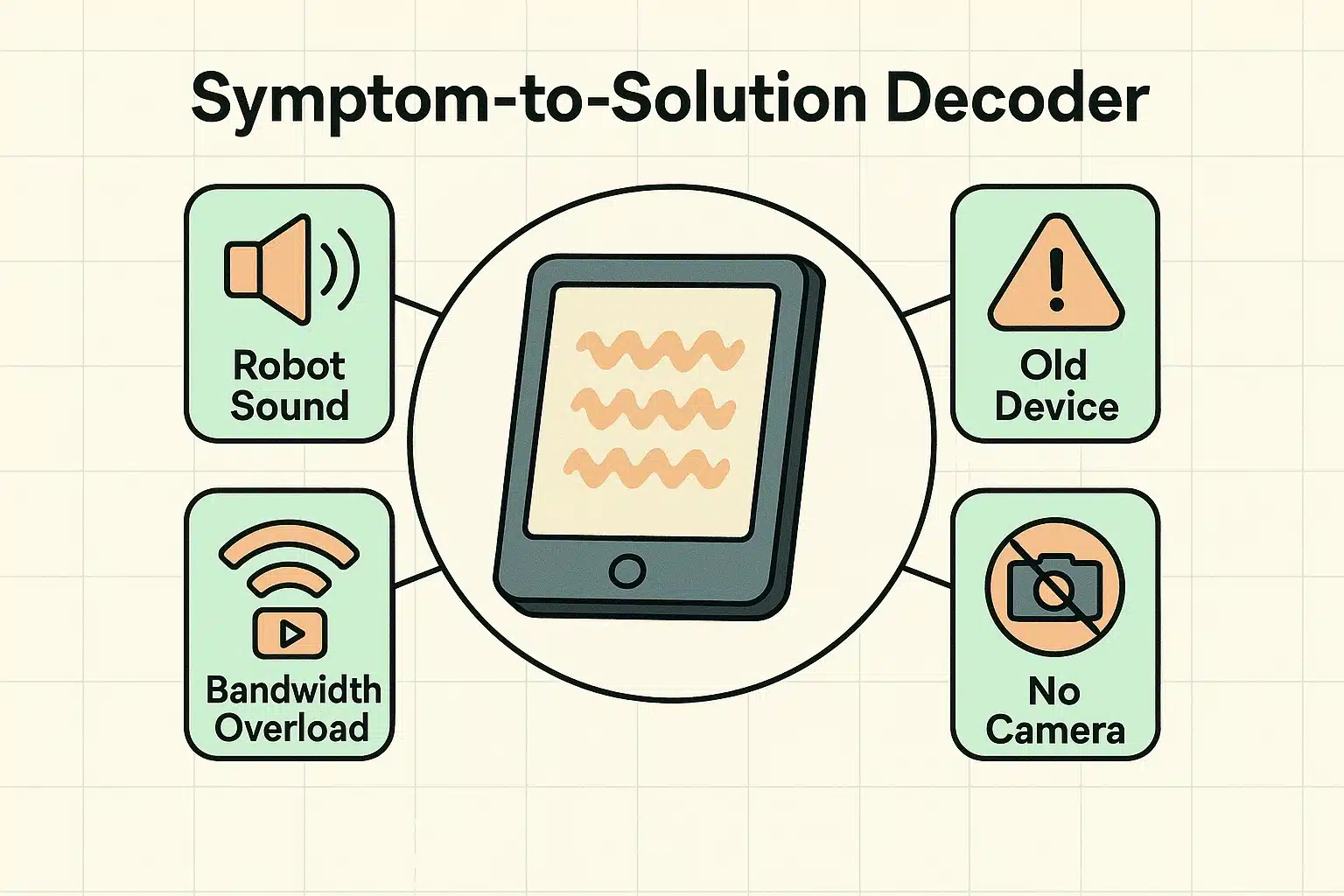
Most tech support guides talk about things like “latency” and “display drivers.” That’s great if you’re building a spaceship, but absolutely useless if you just want to see your cardiologist. Let’s tackle the problems based on exactly what you are seeing and hearing on your screen.
If your doctor looks like they are moving in slow motion, or their voice sounds metallic and choppy, you are likely suffering from a “bandwidth” issue. Think of your home internet like the plumbing in your house. If your internet is the water pressure, a video call is like taking a shower; it needs a good, steady flow.
Now, apply “The Grandchild/Roommate Rule.” Is someone in the other room streaming a high-definition movie on Netflix, downloading a massive video game, or video-chatting with their friends? They are flushing the toilets and running the dishwasher while you are trying to shower!
The fix? Ask everyone in the house to pause their heavy internet usage for fifteen minutes. If you live alone, try moving your device closer to your Wi-Fi router. Walls, floors, and heavy furniture can act like dams, blocking the signal.
You’re talking away, but the doctor is just pointing to their ear and shaking their head. First, check the obvious: is there a physical cover over your camera lens? Many modern laptops and webcams have a tiny plastic slider that covers the lens for privacy. Make sure it’s open and not staring at a piece of black plastic.
If the physical lens is clear, it’s usually a “permissions” issue. Your phone or computer is fiercely protective of your privacy, which is generally a good thing. It won’t let a random website turn on your camera or microphone without your explicit permission.
Look for a tiny pop-up message near the top of your screen, or a small camera icon in the web address bar with a red line through it. Click that little icon, and you should see an option to “Allow” the camera and microphone. Click allow, and you’ll instantly appear on screen.
You’ve had your trusty iPad for seven years. It works perfectly for email, reading the news, and looking at photos of the grandkids. But today, the telehealth app gives you a rude “Device Not Supported” message. Before you rush out to buy a brand new tablet, try “The Browser Pivot.”
Many folks don’t realize that “the app” and “the internet” are two completely different pathways. If the telehealth app is being stubborn or crashes repeatedly (leaving you Googling why is my settings app frozen in frustration), skip the app entirely. Open your internet browser—like Safari on an iPad, or Chrome on a computer—and type in the web address the doctor sent you.
Browsers are much more forgiving than strict medical apps and will often connect perfectly, even on older devices.
Bonus tip for old iPads: If you absolutely must use the app but your iPad says it’s too old to download it from the main screen, try the “Purchased Tab” hack. Go to the App Store, tap your profile picture, tap “Purchased,” and search for the app there. Apple will often magically offer you an older, compatible version to download!
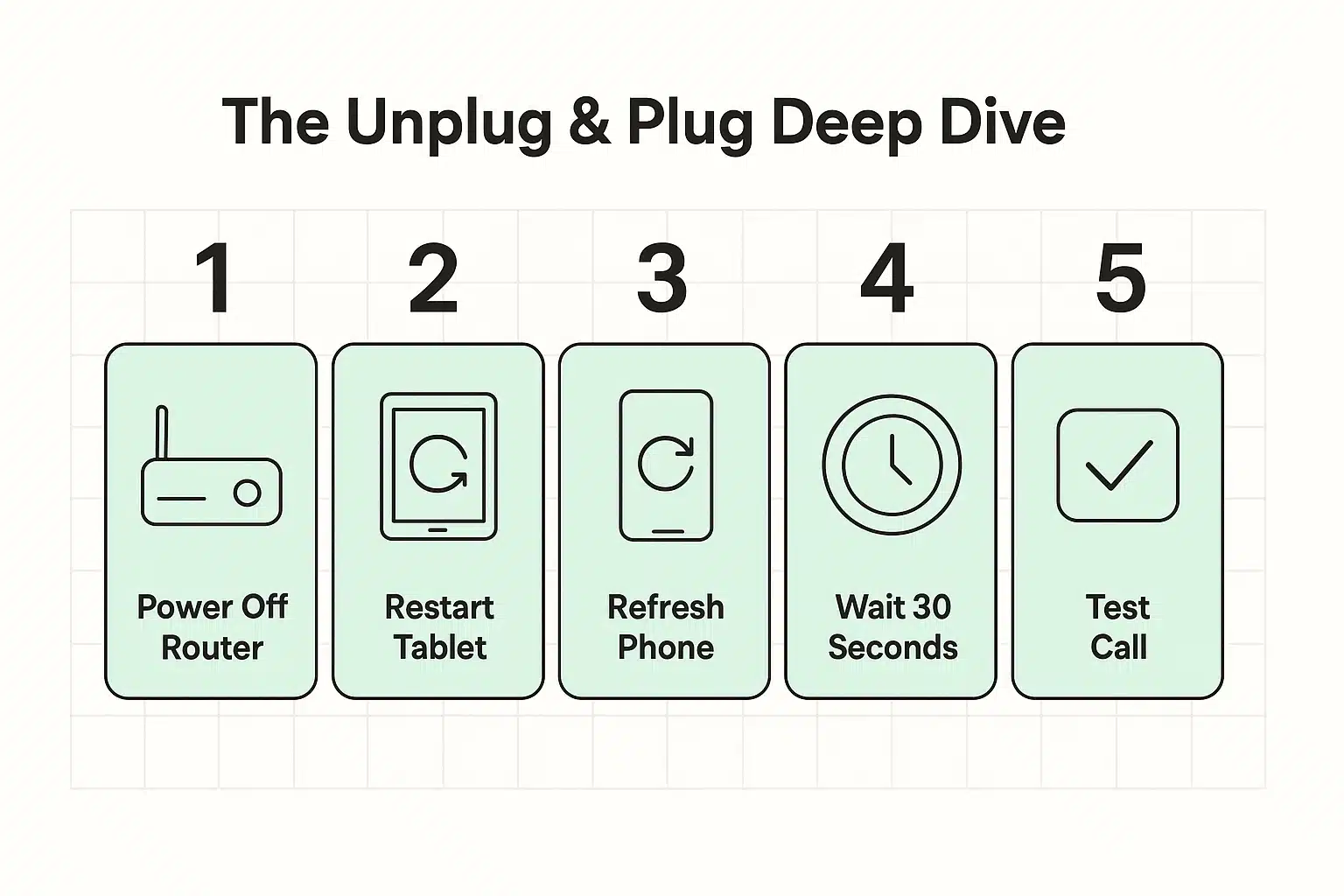
Ah, the oldest trick in the IT manual. Turning it off and on again sounds like a cliché, but it actually works. It clears out the temporary digital gunk clogging up your device’s brain, much like a good night’s sleep clears your mind.
However, there is a right way and a wrong way to do this. Simply turning your tablet screen off and on doesn’t count. You need to completely power it down by holding the power button until you see a slide bar that says “Power Off,” slide it, wait thirty seconds, and turn it back on.
If the issue is your internet connection, you need to reset your Wi-Fi router (that blinking box your internet company gave you). Do not just press a button; physically unplug the power cord from the back of the box or the wall. Wait a full 60 seconds—sing the Jeopardy! theme song to yourself—then plug it back in and wait a few minutes for the lights to turn solid green.
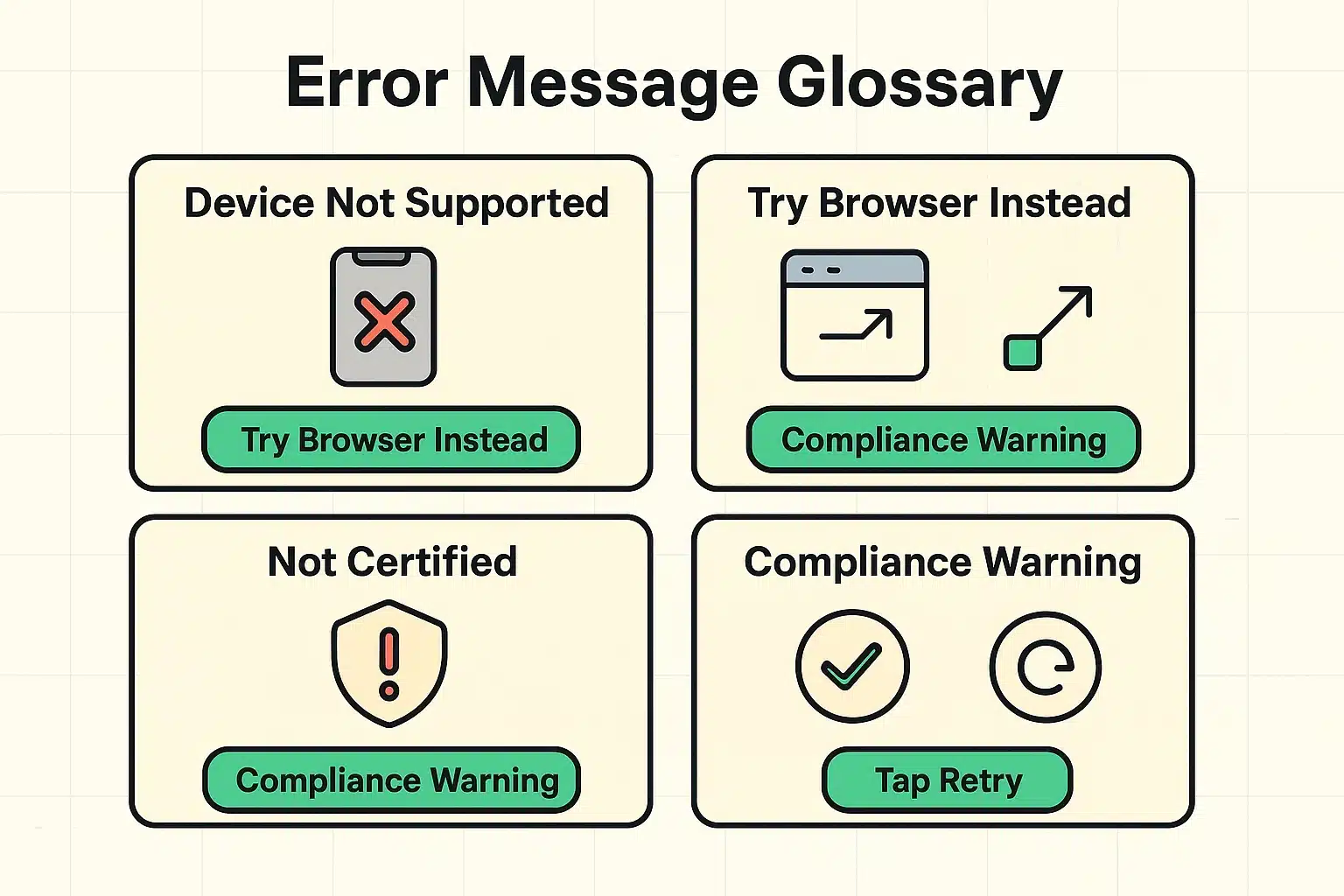
Sometimes, your screen will flash a cryptic message that looks like it was written in an alien language. Let’s translate these common errors into plain English so you know exactly what your computer is whining about.
The absolute best time to fix a telehealth problem is before the doctor is sitting on the other end, waiting for you. Let’s create a quick “pre-flight” checklist to run through ten minutes before your appointment starts.
First, check your battery life. Video calls drain batteries faster than almost anything else on your device. If you are under 50%, plug your device into the wall before the call starts so it doesn’t die mid-sentence.
Second, test your audio and lighting. Sit facing a window or a lamp so the doctor can actually see your face, rather than just a dark, mysterious silhouette. Also, make sure the volume on your device is turned all the way up so you don’t miss a word.
Finally, locate the clinic’s phone number. Write it down on a sticky note and slap it next to your computer. If everything crashes and burns, you won’t have to scramble to find their number to call them the old-fashioned way.
You can absolutely use your smartphone! In fact, modern smartphones often have much better cameras and microphones than older laptop computers. Just make sure you prop the phone up against a sturdy coffee mug or stack of books so you don’t have to hold it the entire time.
Yes, reputable telehealth platforms use high levels of encryption to protect your privacy, similar to online banking. However, you also need to be mindful of your physical surroundings. Don’t take a telehealth call in the middle of a busy coffee shop unless you want everyone in town to know about your tricky knee.
Sometimes email programs freeze up and refuse to cooperate. If clicking the link does nothing, try highlighting the web address, copying it, and pasting it directly into your internet browser’s top address bar.
Technology should make our lives easier, not raise our blood pressure right before seeing the doctor! By keeping these simple tricks in mind, you can approach your next virtual medical visit with confidence and clarity. The more you practice, the less intimidating it all becomes.
If you found this guide helpful, you might also want to explore our other plain-English tutorials. From managing your online passwords without losing your mind to recognizing the signs of an online scam, we’ve got you covered with zero tech-shaming.
Bookmark this page so you have it ready for your next appointment, or better yet, print it out and tape it right next to your desk. Stay safe, stay healthy, and happy video calling!