Newsletter Subscribe
Enter your email address below and subscribe to our newsletter

By Chris Clark, founder of Senior Tech Cafe
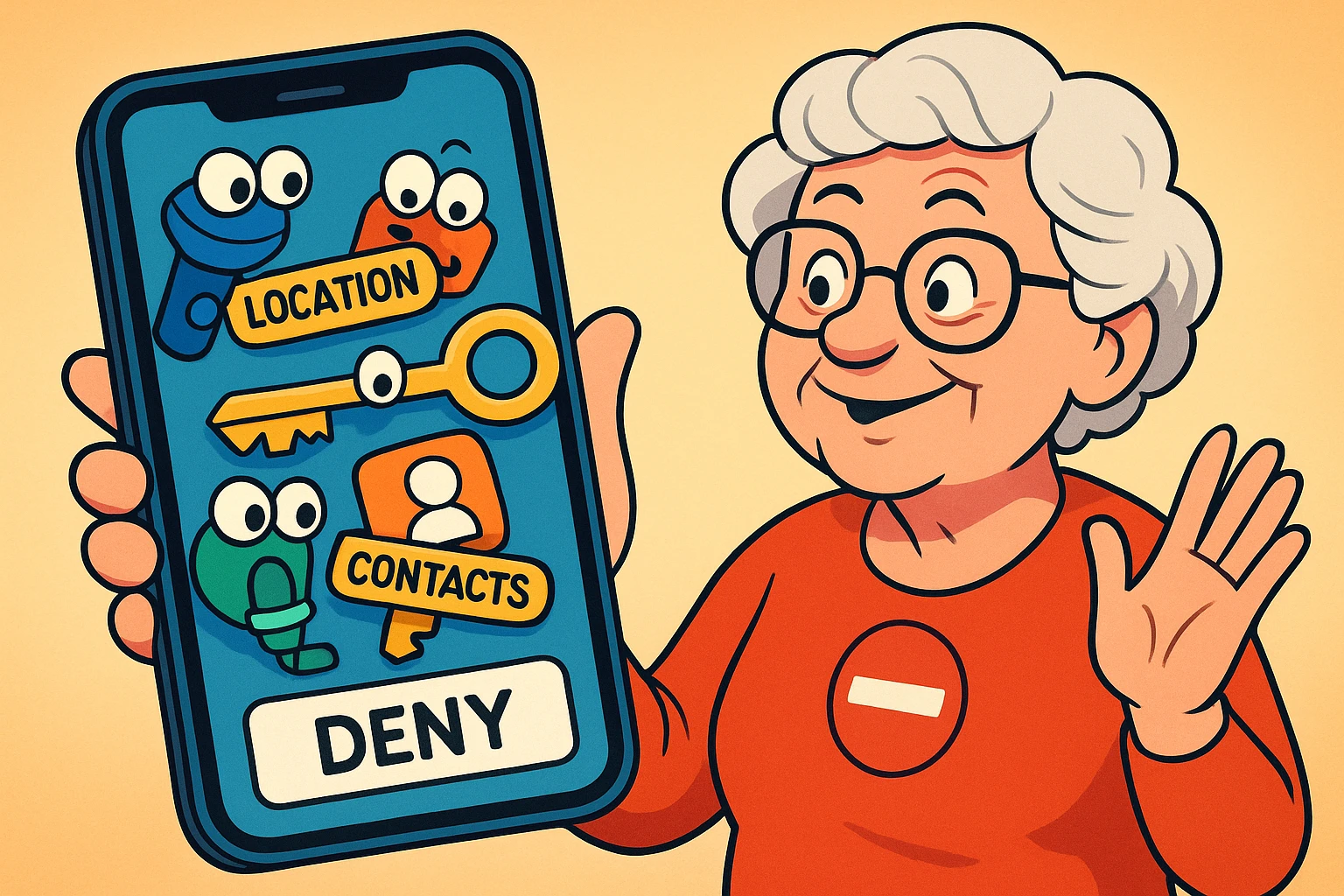
App permissions decide what parts of your phone an app can reach. Location, camera, microphone, contacts, photos, nearby devices, health data.
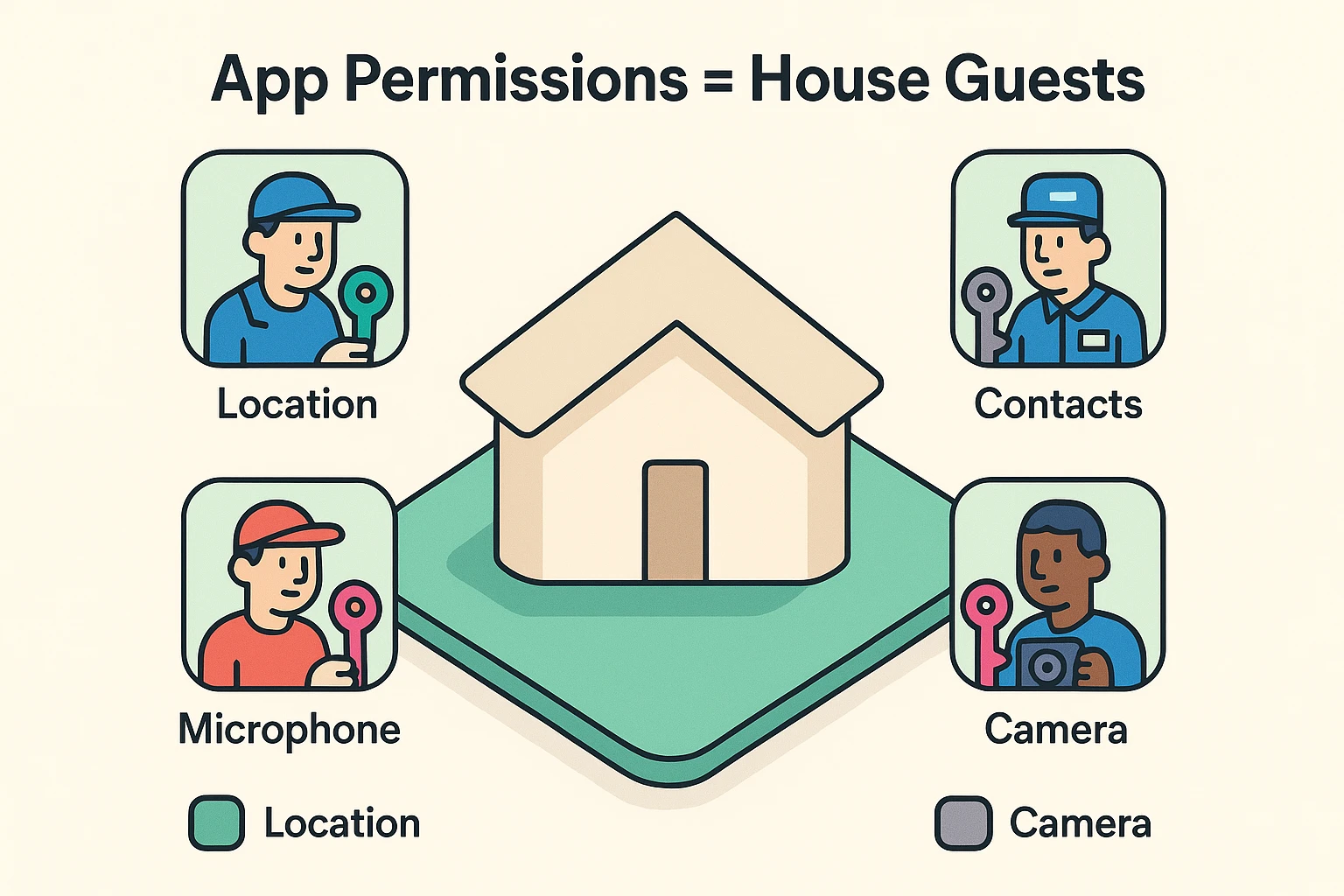
Each one is a key to a different room in your house.
The rule is to hand over a key only when the app needs it for something you’re actually doing.
And take the narrowest option on offer. Selected photos rather than the whole library. Approximate location rather than precise. Allow Once rather than always.
Then come back to the phone’s privacy settings later and see which apps are still holding keys.
Here’s what each request actually buys them.
Location shows where you are. With background access, it shows where you go, all day, over months.
Camera and microphone let an app capture images or sound. Your phone shows an indicator when either is live, which is worth learning to notice.
Contacts is the one people underestimate. It hands over names, numbers and email addresses belonging to other people, who never agreed to anything.
Photo access may cover your entire library or only the images you pick. Notifications are less sensitive, but they can spill private information onto a lock screen anyone can read.
One question handles most of this. Does this access support the feature I’m using right now?
You have three answers here, not two.
Allow it when the feature genuinely needs it. Microphone access during a voice call, for instance.
Limit it when the phone offers a middle option. Allow Once, While Using, approximate location, selected photos. Take the middle option nearly every time.
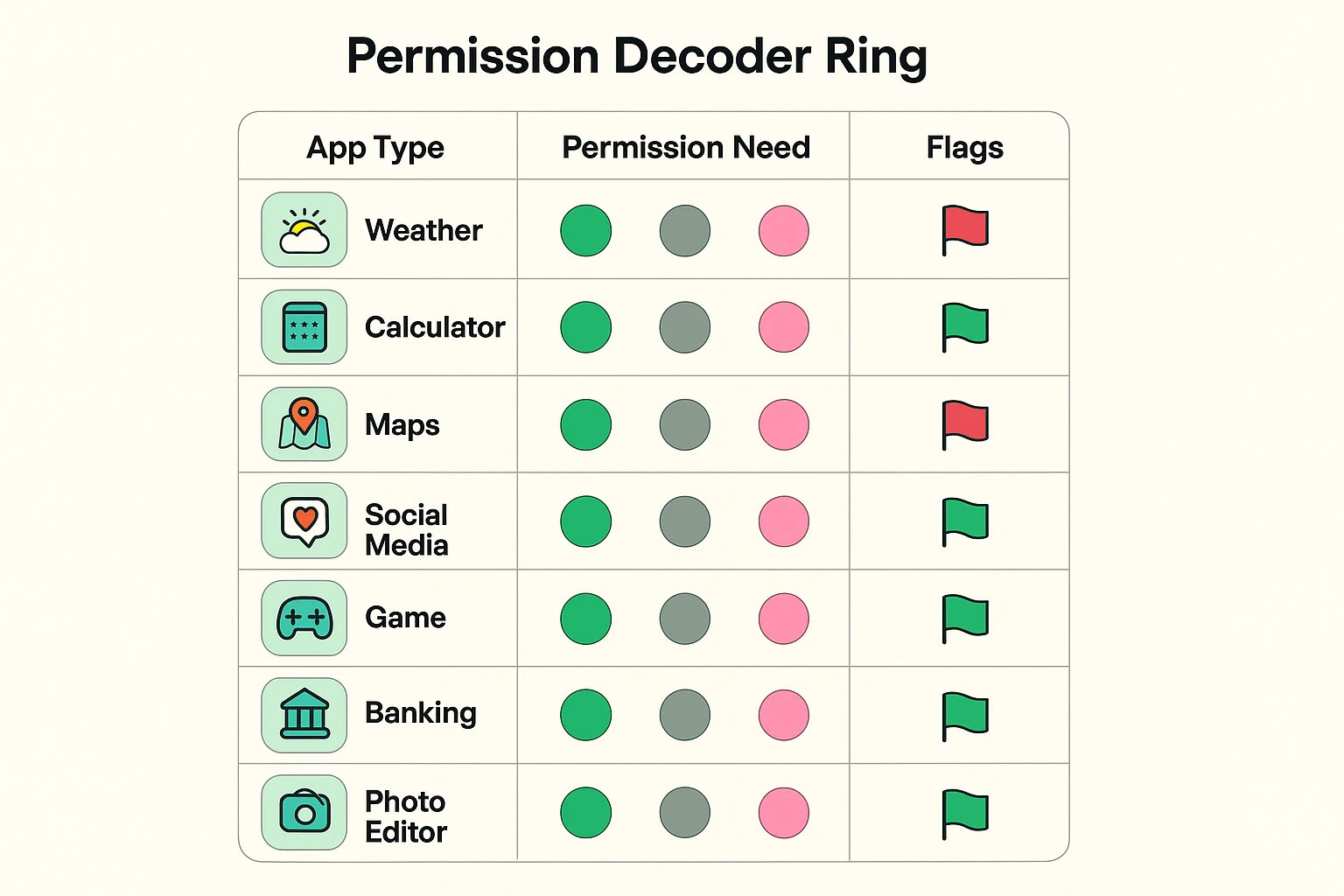
Deny it when the request has no obvious connection to what the app does. A flashlight asking for your contacts gets a no.
Denying a permission doesn’t damage your phone. At worst it switches off one feature until you turn the access back on.
You can always change your mind, and nothing breaks while you’re deciding.
A free app still has to make money somewhere. Usually that’s advertising, analytics, subscriptions, or sharing data with partners.
But a permission request doesn’t tell you the whole business model, so read the app-store privacy label and the developer’s privacy policy before granting broad access.
Decline the optional extras. Tracking, contact uploads, precise location, background access. Most apps work perfectly well without them.
And drop two assumptions while you’re at it. Paying for an app doesn’t automatically make it private. Free doesn’t automatically make it unsafe.
Price tells you almost nothing about privacy. The permission list tells you considerably more.
If your information has already spread further than you’d like, our guide on how to remove information from data brokers covers pulling it back.
An AI app may want your microphone, camera, photos, files, contacts or location, depending on what it does.
Grant only what the task needs, and think about the file before you upload it.
Strip private details out of documents first. Hold back financial, medical, account or identity information until you know how it’ll be stored and used.
Our broader guide to AI privacy and data security covers this beyond just permissions.
Turn off background access and contact syncing when they aren’t essential, and delete uploaded history through the service’s account controls where that’s offered.
Worth remembering: uploading a document hands over a copy. You can delete your side of it. You can’t take back theirs.
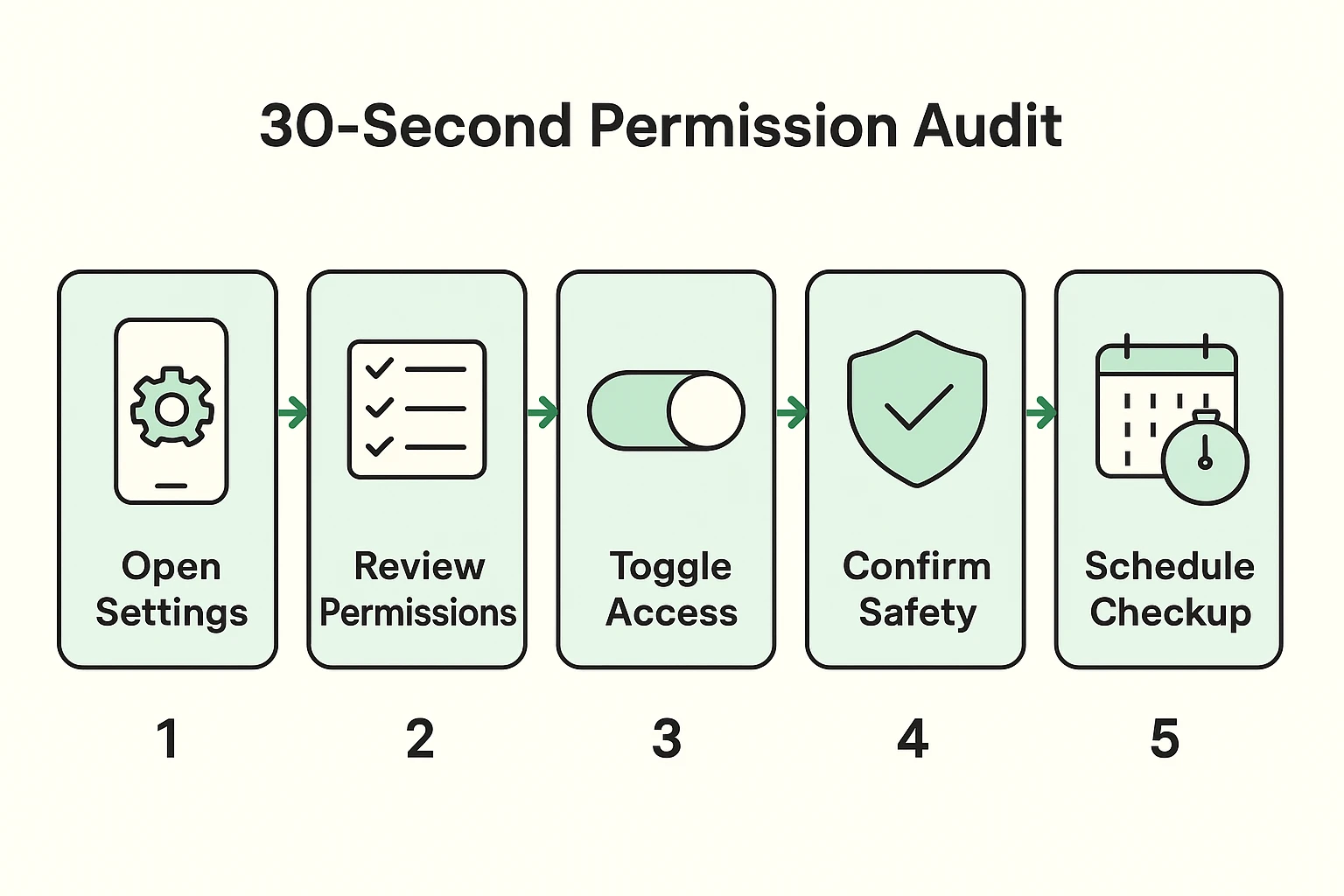
On iPhone or iPad, open Settings, then Privacy & Security. Pick a category such as Location Services, Microphone, Camera, Contacts, Photos or Tracking, and look at which apps are listed under it.
On Android, open Settings, then Privacy or Security & Privacy, then Permission Manager. You can also open Apps, pick one app, and choose Permissions.
Labels vary by model and version, so search rather than following a fixed path somebody wrote down last year.
Then revoke anything that no longer makes sense, use the app, and restore only the specific permission a feature actually needs.
Nothing here is permanent, so it’s safe to look around.
App Clips and Android Instant Apps are small, temporary versions of an app that run without a full install.
Temporary doesn’t mean harmless. A short visit can still ask for quite a lot, so treat those requests exactly like a full app’s.
Then there’s background activity. Background App Refresh and background data let apps update while you aren’t using them. Background location is separate, and it’s the more sensitive one.
Turn off background access for apps that don’t need to be current the second you open them.
And glance at your battery or privacy dashboard occasionally. An unfamiliar app showing unusual activity is worth a look.
Your smartphone is your property, and you decide what gets access to it.
If an app wants a permission, make it earn that access. Say no when a request doesn’t add up, use the limited options when they’re offered, and check back every so often.
For the wider picture, our online safety tips for seniors guide covers scams, privacy and security together in one place.
Allow one when it directly supports something you’re trying to do. Prefer the limited choices where they exist: selected photos, approximate location, while using the app, allow once. No permission is safe or unsafe by itself. The test is whether the app needs it for what you’re doing right now.
No. Denying a permission may switch off one feature in one app, but it can’t damage the phone. You can restore that specific permission later in your privacy or app settings. Saying no is a normal answer, and the app will usually tell you what it needs if it genuinely needs it.
Because the money comes from somewhere else. Usually advertising, analytics, subscriptions, or sharing data with partners. Read the app-store privacy label and the privacy policy, and decline optional tracking or access the app doesn’t need. Free means the price isn’t money. Knowing what it is instead lets you judge the trade.