Newsletter Subscribe
Enter your email address below and subscribe to our newsletter

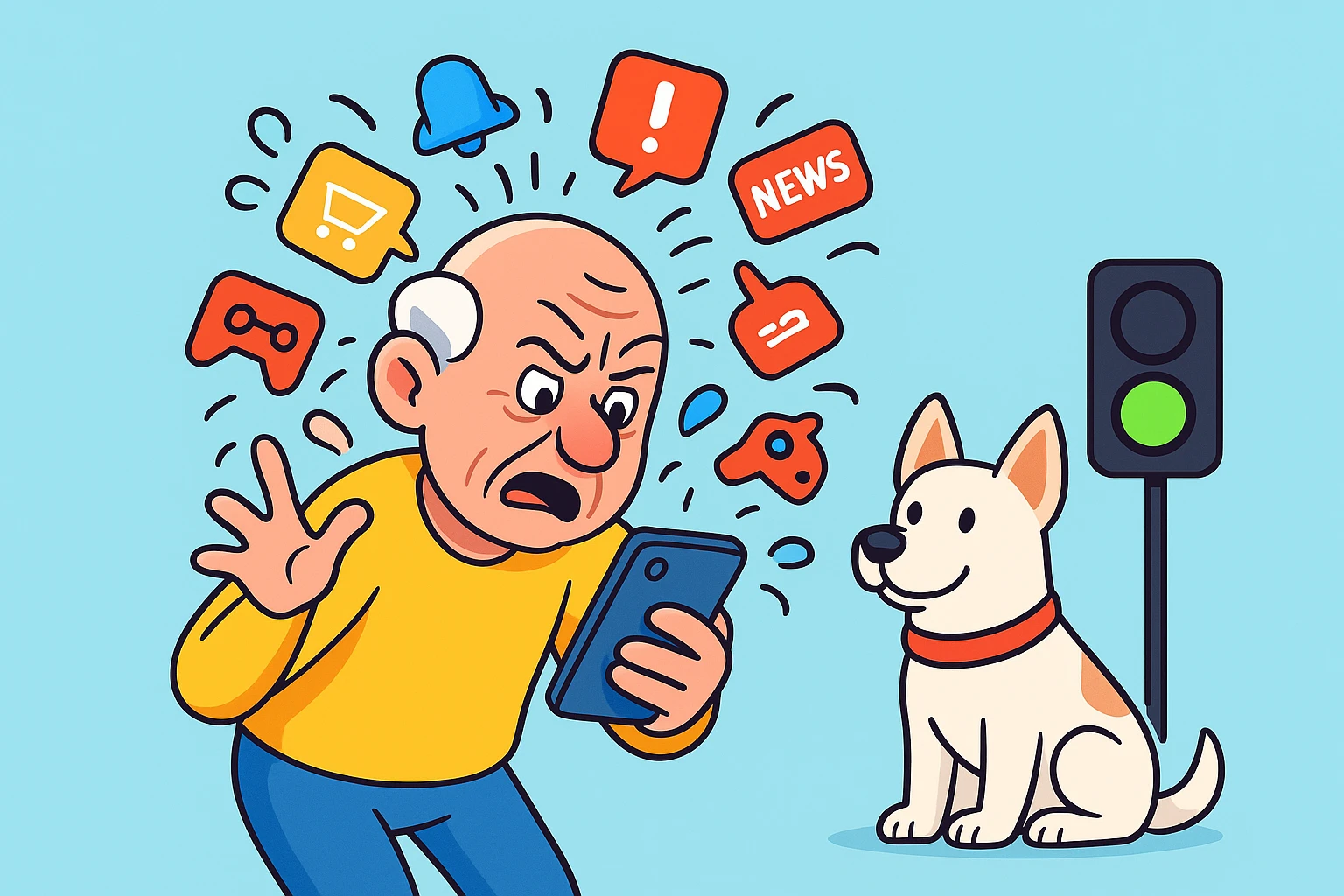
You’re sitting in your favorite chair, enjoying a quiet cup of coffee. Suddenly, your phone buzzes, dings, and lights up like a pinball machine. Is it an emergency? Has your bank account been compromised? Is your grandson calling to say he finally got a real job?
You scramble to find your glasses, knock over a coaster, and unlock the screen, your heart pounding. And what is this urgent, life-altering message? Your grocery app is thrilled to announce that canned peas are 12 cents off.
If this sounds familiar, welcome to the club. Modern smartphones are like over-caffeinated toddlers; they constantly poke you for attention about absolutely nothing. But here is the real problem: because our phones cry wolf 40 times a day, we start ignoring them. And that’s exactly how we miss the actual important stuff, like a security warning or a call from the doctor.
Today, we’re going to fix that. We are going to turn your phone from a hyperactive yapping terrier into a well-trained guard dog.
In the corporate tech world, professionals who monitor massive computer systems suffer from something called “alert fatigue.” If an alarm goes off every three seconds, the human brain simply stops caring. You aren’t losing your mind or getting “too old for tech.” You’re just experiencing a professional-level tech problem right in your living room.
Many people get so fed up that they just mute their phone entirely. But that’s like putting earplugs in because your smoke detector won’t stop beeping. Sure, it’s wonderfully quiet now, but it’s incredibly dangerous.
Think of your phone as a digital guard dog. A dog that barks at a squirrel, a falling leaf, and a cloud shaped like a bone is completely useless. You eventually tune it out. We need to train your phone to only bark at the burglars.
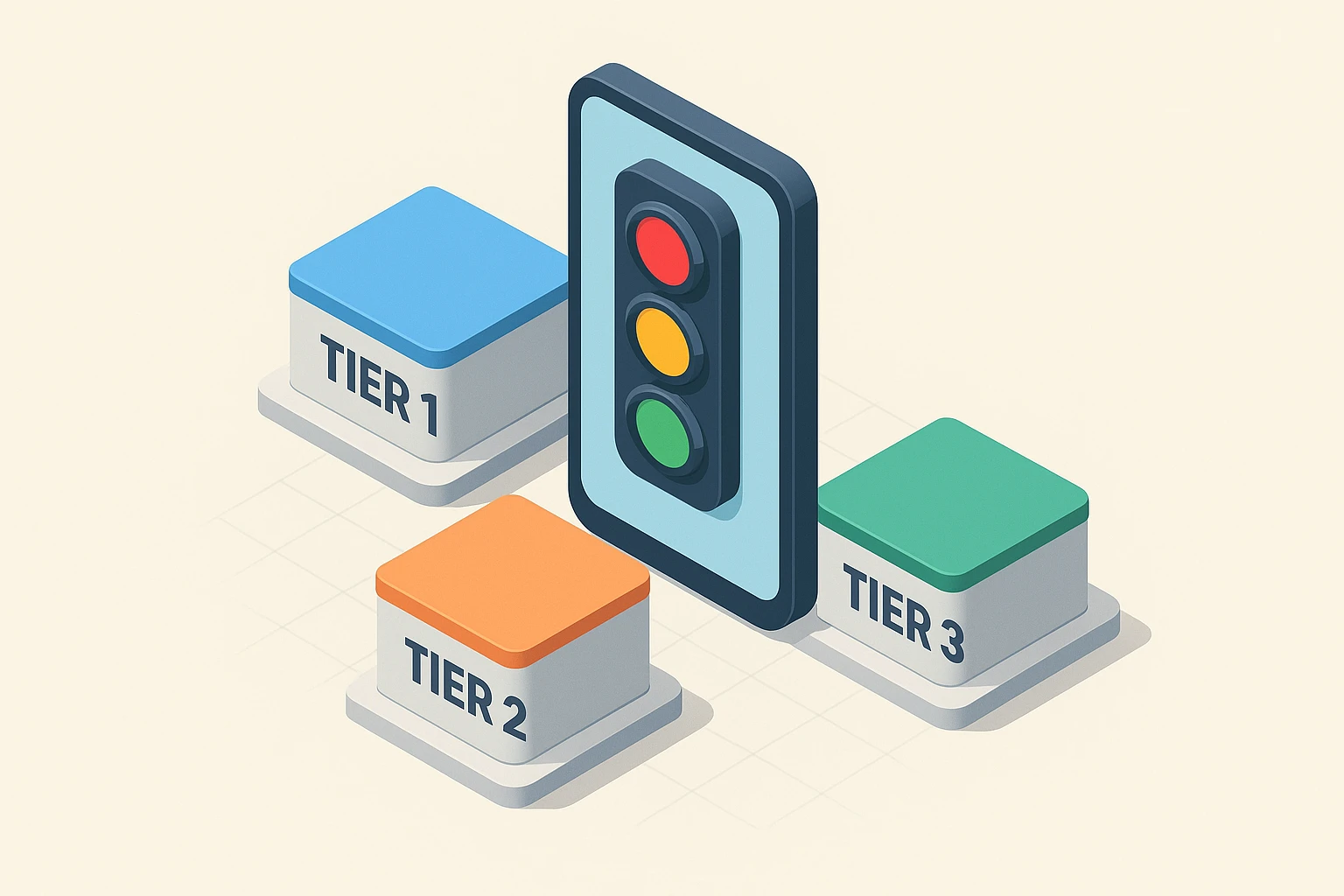
To regain our sanity and protect our safety, we need to sort our notifications using a simple “Traffic Light” system. This helps us decide what gets our attention immediately, what can wait, and what should be banished forever.
These are the digital emergencies. Bank fraud alerts, government weather warnings, device security breaches, and calls from your immediate family or doctors live here. These need to break through the noise, even if you are fast asleep.
These are things you want to know, but maybe not right this second. Think text messages from friends, doctor appointment reminders, or a notification that someone is actually standing at your front door ringing the doorbell.
This is the digital equivalent of junk mail. Social media updates, news alerts, app updates, and the neighborhood watch app telling you someone saw a suspicious raccoon. These should never, ever make your phone vibrate or ring.
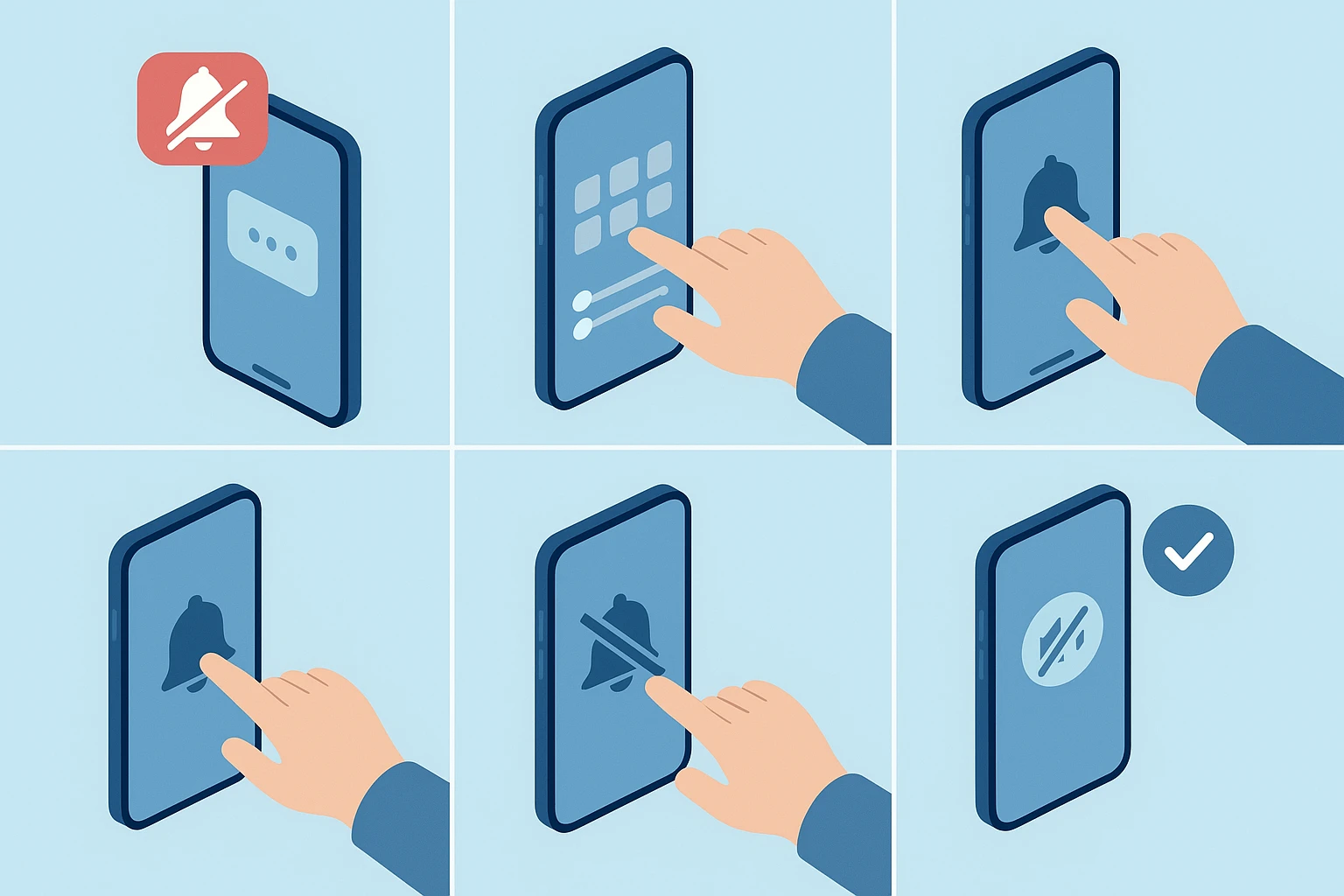
Now it’s time to take action. Go to the “Settings” app on your phone (it usually looks like a little grey gear wheel). Look for the section clearly labeled “Notifications.”
Here, you will see a list of every single app on your phone. It’s time to be ruthless. Scroll down this list and turn off the notifications for anything that doesn’t desperately need your immediate attention. Games, shopping apps, and social media should all be switched to “Off.”
I want to issue a special warning about smart doorbells like Ring. Many people leave the “Neighborhood” alerts on, which means your phone buzzes every time someone three streets over loses their cat. You can turn off these neighborhood alerts inside the Ring app settings. Don’t worry, your camera will still record, and you’ll still be notified if someone is actually on your porch. You just won’t be notified about the cat.
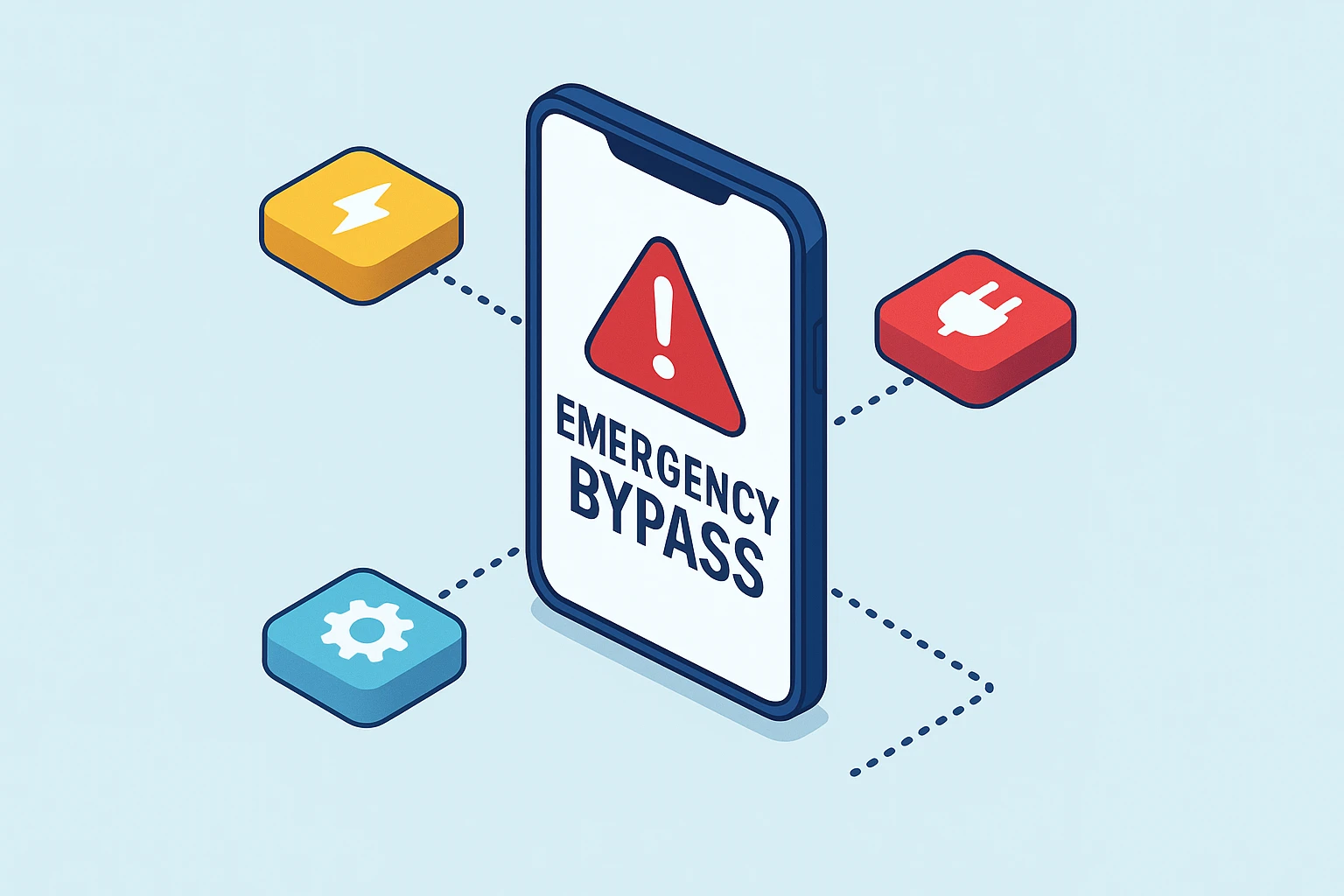
So, you’ve silenced the nonsense. But what if you want to use the “Do Not Disturb” feature at night, yet still need to hear from your daughter or the doctor? This perfectly valid fear is exactly what stops many seniors from silencing their phones.
Both Apple and Android phones have a brilliant, somewhat hidden feature called “Emergency Bypass” or “Starred Contacts.” This allows you to tell your phone, “I am ignoring the entire world right now, EXCEPT for these specific people.”
To set this up, go to your phone’s Contacts list. Find your doctor or family member, tap on their name, and hit “Edit.” Look for “Ringtone” and turn on “Emergency Bypass” (on iPhones) or add them to your “Favorites” list (on Androids). Now, if they call, your phone will ring like a fire alarm, even if it’s completely silenced to everyone else.
Smartphone apps are sneaky. Sometimes, when they run an update, they try to secretly turn their notifications back on so they can bother you again. To keep your digital guard dog well-trained, perform a quick 5-minute audit every Sunday morning while you drink your coffee.
Just pop into your Notification settings and make sure nothing has snuck back onto the approved list. If that grocery app is trying to tell you about canned peas again, simply switch it back off.
By taking control of these alerts, you aren’t just making your life more peaceful. You are actively improving your digital security by ensuring that when your phone does bark, you know it’s a burglar, not a squirrel.
No! This is a huge myth. If you turn off notifications for your email, you will still get all your emails perfectly fine. You just won’t be interrupted every time one arrives. You can simply open the app and check them on your own schedule.
Government emergency warnings (like extreme weather or Amber Alerts) are specifically designed to bypass your mute switch. This is a built-in safety feature so you don’t sleep through a tornado. You can usually turn these off in your settings, but we highly recommend leaving them on for your safety.
Real security alerts from your phone usually appear quietly in the main Settings app itself. If you get a frantic text message or a massive pop-up saying “YOUR PHONE IS INFECTED CLICK HERE IMMEDIATELY,” it is almost certainly a scam trying to scare you. Never click links in those random messages; just close the app and go directly to your phone’s official settings to check.