Newsletter Subscribe
Enter your email address below and subscribe to our newsletter

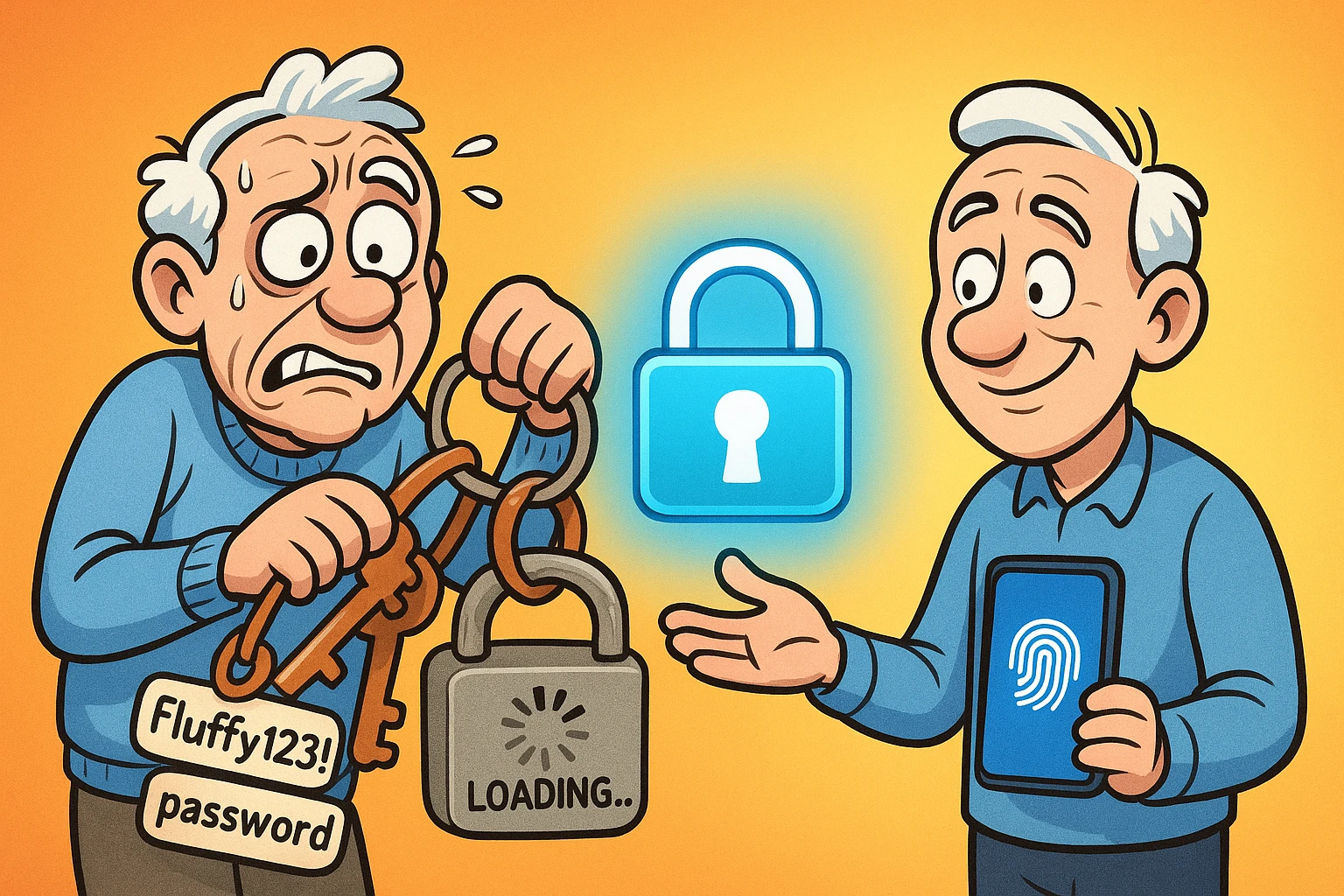
Remember when you first set up your email password back in 2012? You probably typed in something like “Fluffy123!” and patted yourself on the back for outsmarting the internet hackers. You locked the digital door, tossed the key in a mental drawer, and assumed your account was safe until the end of time. It’s the classic “set it and forget it” mentality, much like buying a treadmill with the sincere belief that just owning it will help you magically lose weight.
Unfortunately, while you’ve been ignoring that password, the bad guys have been hitting the digital gym. According to recent FBI reports, elder fraud losses reached a staggering $4.8 billion last year, with tech support scams alone jumping by 11%. That old password isn’t a deadbolt anymore; it’s a beaded curtain in a hurricane.
The good news? Keeping yourself safe doesn’t require a degree in computer science. You just need to know how to give your digital life a simple checkup.
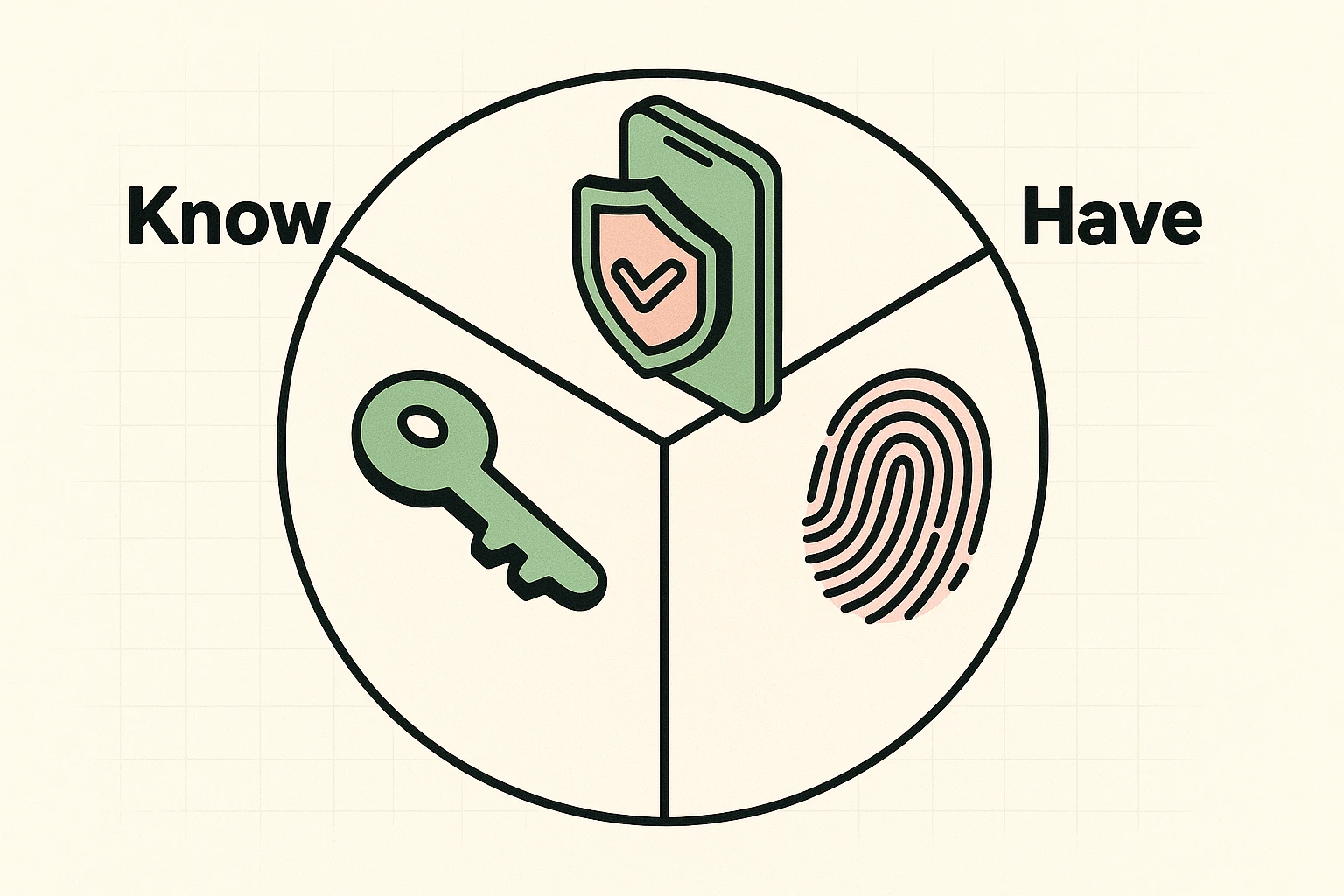
Before we talk about when to change your locks, let’s look at what kind of locks you actually have. In the tech world, keeping your accounts safe usually relies on the “Three Pillars of Authentication.” Don’t worry, there isn’t a pop quiz at the end.
Pillar 1: Something you know. This is your standard password or PIN. It’s the secret handshake you memorized.
Pillar 2: Something you have. This is your smartphone or a physical security key. If a bank texts you a six-digit code to log in, that’s them verifying you actually have your phone in your hand.
Pillar 3: Something you are. These are biometrics, which sounds like a scary word from a science fiction movie but just means your fingerprint or face. It’s a biological key that you can’t accidentally leave in your other pants.
When you use more than one of these pillars at the same time—like typing a password and then using your fingerprint—you create strong auth that stops hackers dead in their tracks.
For years, the “experts” told us to change our passwords every 90 days. So, we obediently changed “Fluffy123” to “Fluffy124,” then “Fluffy125,” until we completely lost track and ended up locking ourselves out of our own accounts. It was a recipe for massive “security fatigue.”
Thankfully, top agencies like the National Cyber Security Centre (NCSC) have officially declared this to be terrible advice. Forcing yourself to constantly change passwords just makes you pick weaker, predictable ones.
Think of it like the locks on your front door. You don’t change your house keys every three months “just because.” You only change the locks if you lose your keys, give a copy to an untrustworthy plumber, or notice the lock getting rusty. Your digital life works the exact same way!
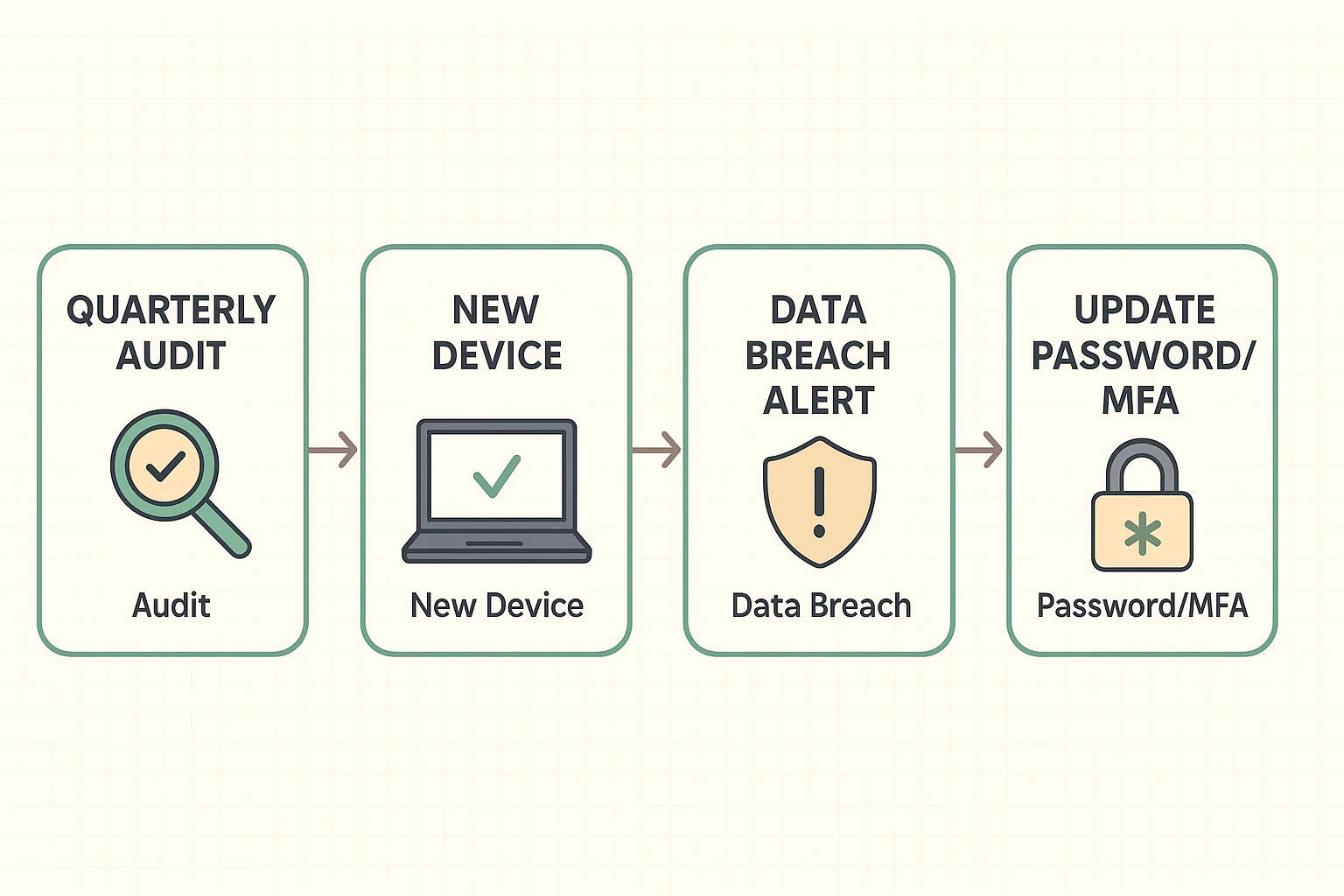
So, if we aren’t changing passwords every time the seasons change, what should we be doing? The secret is to audit your settings regularly, but only change them when specific triggers occur.
Trigger 1: The “New Login” Email. If you get an email from a service saying “New login from a device in Antarctica” and you are currently sitting in Ohio, that is a massive red flag. Update your password for that account immediately.
Trigger 2: The Data Breach. If a company emails you to say they’ve had a data breach, believe them. Change the password for that specific account. And if you used that same password for your bank? Change that one too (and please, stop reusing passwords!).
Trigger 3: A Major Life Event. Did you get a new tablet? Did you recently part ways with a nosy contractor who had your Wi-Fi password? It’s a good time to review who has access to your digital life.
When you do make changes, consider using a password manager to remember the complex ones for you. If you ever forget the one password needed to unlock it, you can simply do a master password reset and get right back to business.
What if I told you there was a way to never forget a password again, mostly because you wouldn’t have to remember one in the first place? Welcome to the magic of “Passkeys.”
Passkeys are the modern, incredibly secure replacements for passwords. Instead of typing in a jumble of letters, numbers, and symbols, you just use your phone or computer to prove it’s you. It uses your fingerprint or facial recognition to log you in instantly.
Think of a passkey as a digital VIP badge that lives safely inside your device. Hackers can’t steal it from a website because the passkey never leaves your phone. It is quite literally the end of the password cheat sheet you currently have hidden under your keyboard.
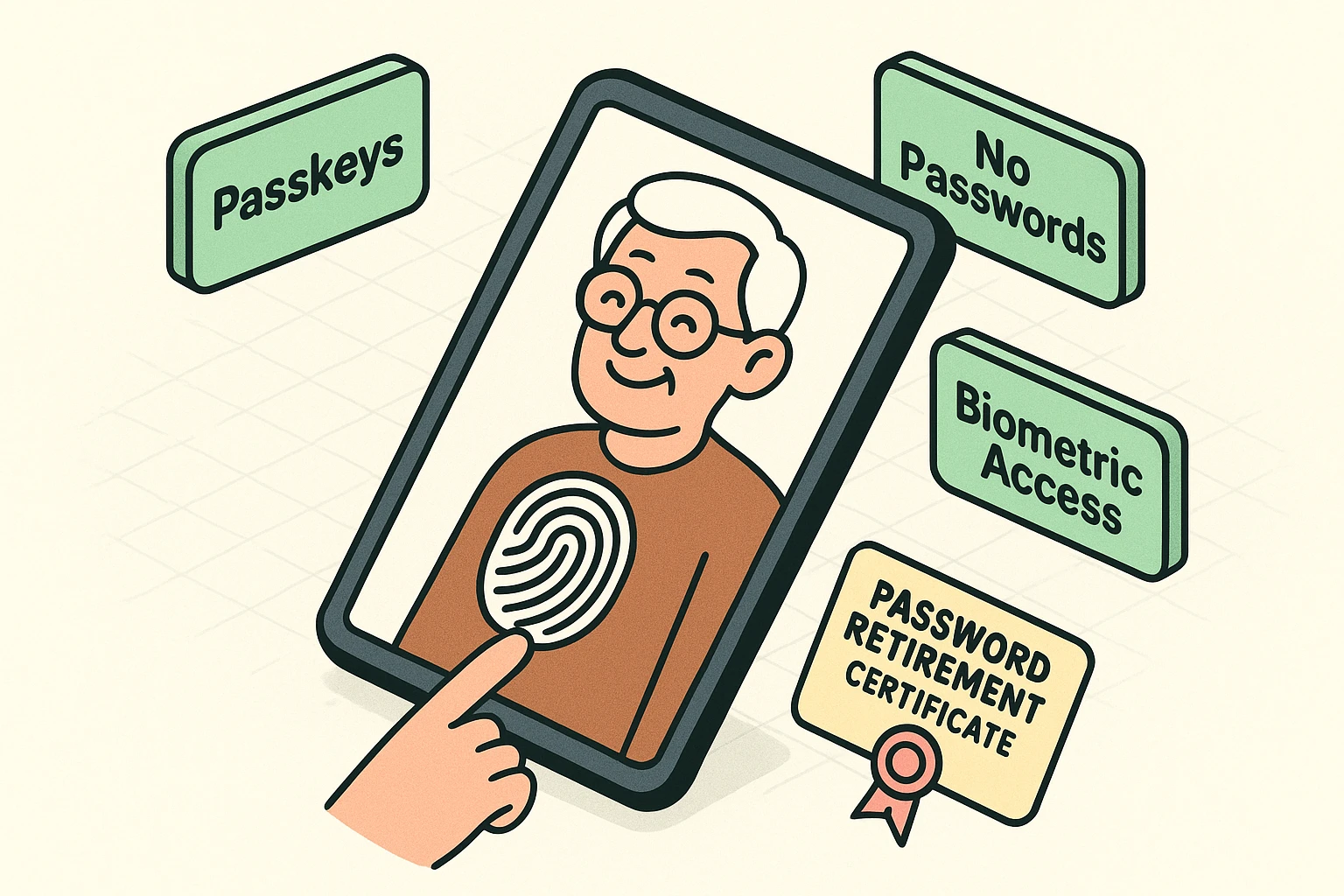
Ready to kick the “set it and forget it” habit? Here is a quick, pain-free checklist to get your digital house in order today.
Nope! If your password is long, unique, and hasn’t been part of a data breach, leave it alone. The old rule to change it every few months is officially outdated and does more harm than good.
This is why websites give you printable “backup codes” when you first set up Multi-Factor Authentication. Print those backup codes out and put them in a physical safe or filing cabinet with your important papers!
Yes. A scammer can easily peek over your shoulder at a coffee shop and watch you type a 4-digit PIN. They have a much harder time stealing your actual face.
Bribe them with food. Just kidding (mostly). Try saying, “I’m learning how to set up passkeys to make my accounts hacker-proof. Can you walk through it with me to make sure I click the right buttons?” It positions you as proactive, not helpless.
Taking control of your online security doesn’t mean you need to become a computer programmer overnight. It just means checking your digital locks every once in a while to make sure the hinges aren’t rusting.
Start small. Pick one important account this week, check its security settings, and see if you can upgrade to a passkey or turn on Multi-Factor Authentication. You’ve successfully navigated decades of life’s curveballs—you can absolutely handle a simple digital tune-up!