Newsletter Subscribe
Enter your email address below and subscribe to our newsletter

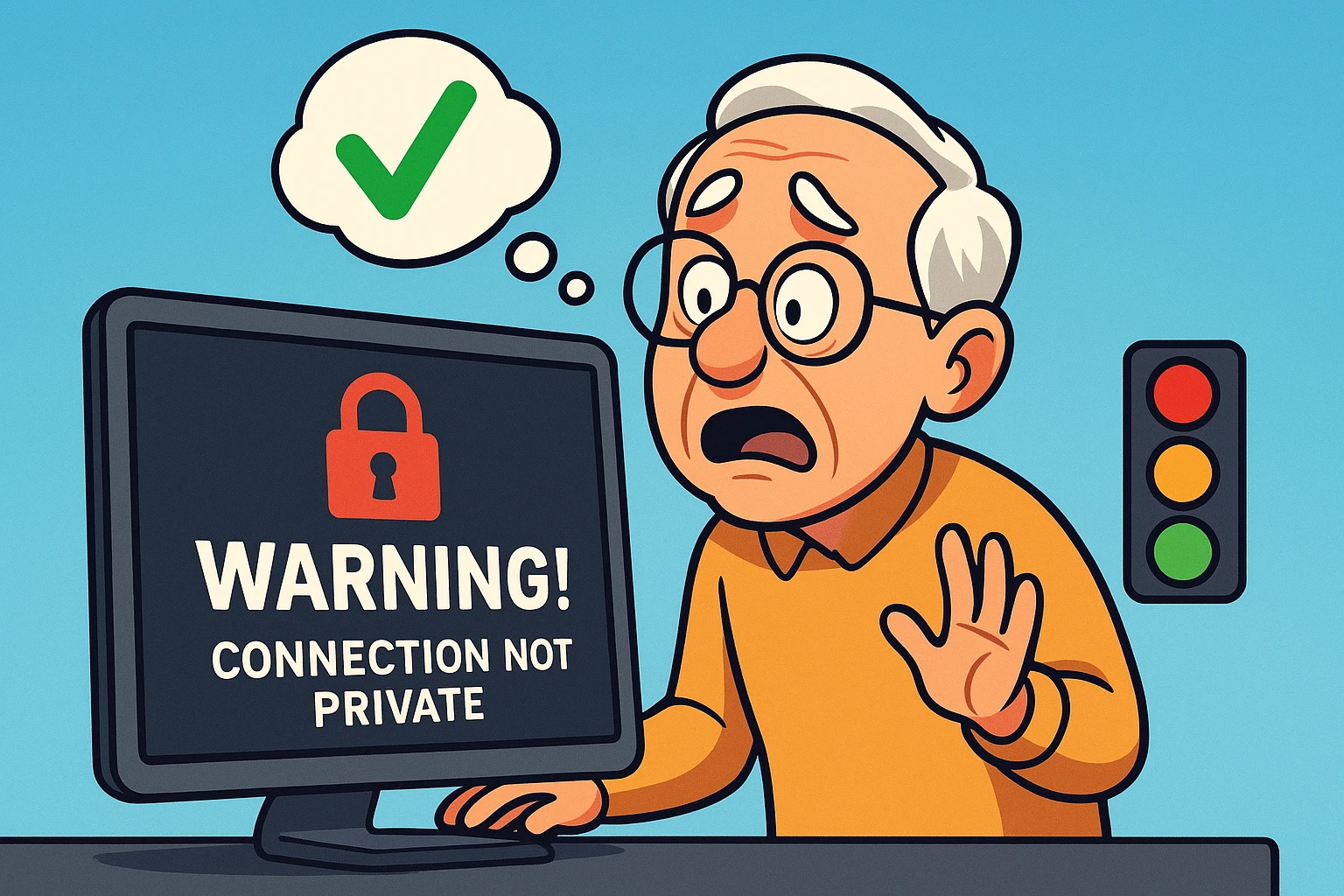
You have settled into your favorite armchair with a cup of coffee, ready to visit a website you’ve been to a dozen times. Maybe it’s a local knitting blog or a site dedicated to the history of antique doorknobs. You type in the address, hit Enter, and… BAM.
The screen goes dark. A scary red padlock appears. Bold letters scream “Your connection is not private” or “Warning: Potential Security Risk Ahead.”
Your heart does a little gymnastics routine. Did you break the internet? Is a hacker currently siphoning your bank account information while laughing maniacally in a dark basement?
Take a deep breath. Put down the coffee (gently). You are likely perfectly safe.
While these warnings look terrifying—designed by software engineers who apparently think “inducing a mild heart attack” is a good user interface choice—they usually don’t mean you are being hacked. They simply mean your browser (the digital bouncer) and the website (the club) are having a disagreement about the paperwork.
Here is the plain English guide to understanding what that scary screen actually means, and how to decide if you should stay or run.
To understand why your computer is freaking out, you have to understand how the web works. When you visit a secure website (one that starts with https), your browser demands to see some identification.
Think of it like buying wine at the grocery store. You walk up to the register (the website), and the cashier (your browser) asks to see your driver’s license.
If your license is valid, the cashier nods, and you proceed. This is the “digital handshake.” Everything is secure, and no one can snoop on your transaction.
But what happens if you hand the cashier a license that expired yesterday? Or a library card with your photo taped to it? Or a piece of cardboard where you wrote “I am 21” in crayon?
The cashier is going to stop you. They aren’t arresting you. They aren’t saying you are a criminal. They are just saying, “Hey, this paperwork doesn’t look right, so I can’t let you proceed until we figure this out.”
That is exactly what the “Connection Not Private” warning is. It is your browser telling you the website’s ID card is messy.
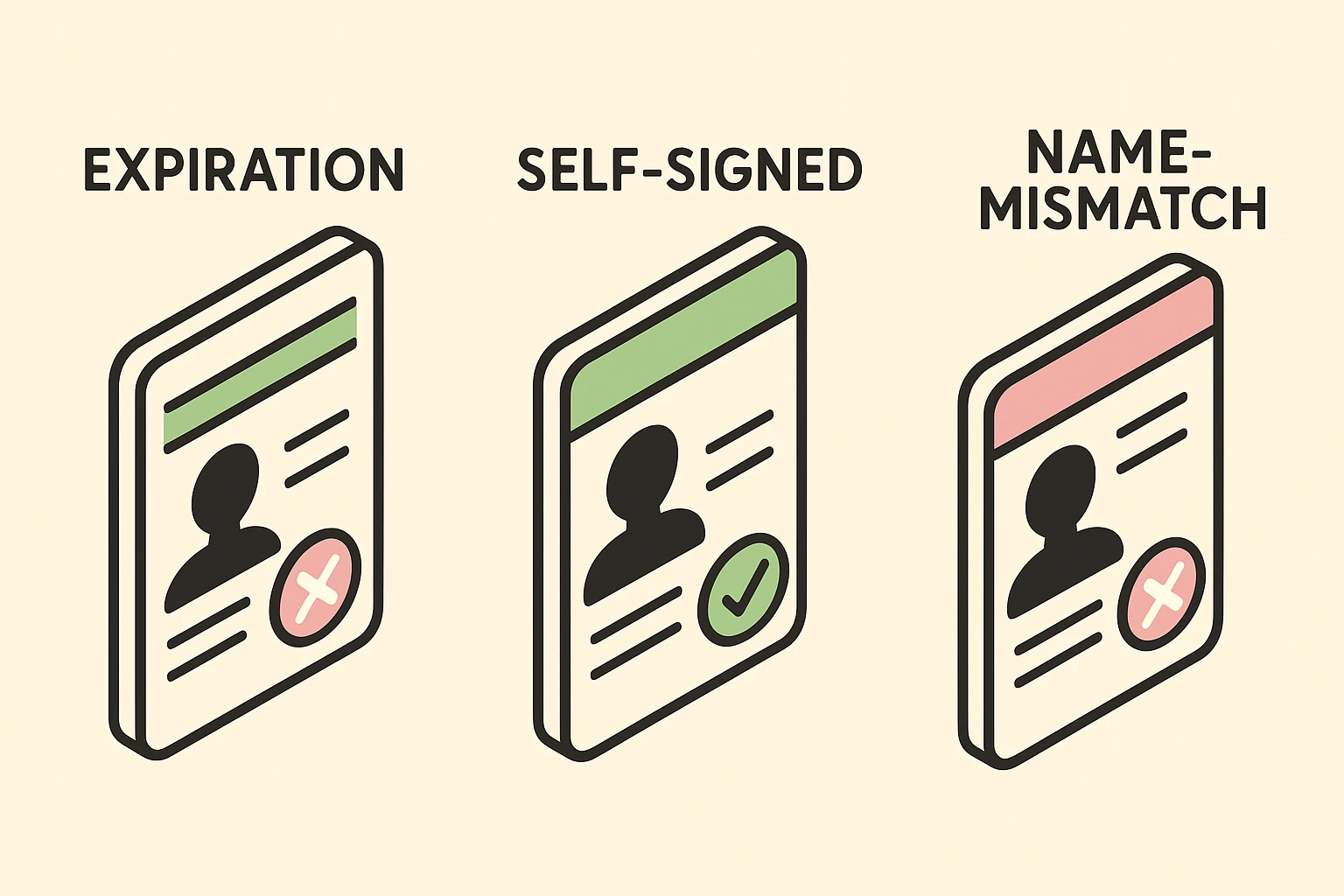
If you look closely at that scary warning screen, you will often see some technical gibberish in all caps, like NET::ERR_CERT_DATE_INVALID. While it looks like a robot sneeze, it’s actually a specific clue.
Here are the three most common “bad ID cards” you will encounter:
The Error: NET::ERR_CERT_DATE_INVALIDTranslation: The website owner forgot to renew their security certificate.Risk Level: Low.Just like you are still the same person even if your driver’s license expired yesterday, the website is usually still the same website. The owner just forgot to pay the renewal fee or update a setting. It happens to the best of us.
The Error: ERR_CERT_AUTHORITY_INVALIDTranslation: The ID card wasn’t issued by a trusted government office (like the DMV); the website owner made it themselves.Risk Level: Medium to High.Sometimes, programmers make their own ID cards for testing purposes. But sometimes, scammers do it too. Unless you personally know the person running the site, be very careful here.
The Error: ERR_CERT_COMMON_NAME_INVALIDTranslation: You tried to visit amazon.com, but the ID card says www.scam-r-us.net.Risk Level: Extreme.This is like handing over an ID that says “Bob Jones” when your name is “Susan Smith.” This is a major red flag. Do not pass Go. Do not collect $200.
So, the warning is flashing. Do you click the tiny “Advanced” button and proceed, or do you close the window?
Most tech guides will tell you “never proceed.” That is safe advice, but it’s not always practical. Real life is messier than that. Here is a realistic way to decide.
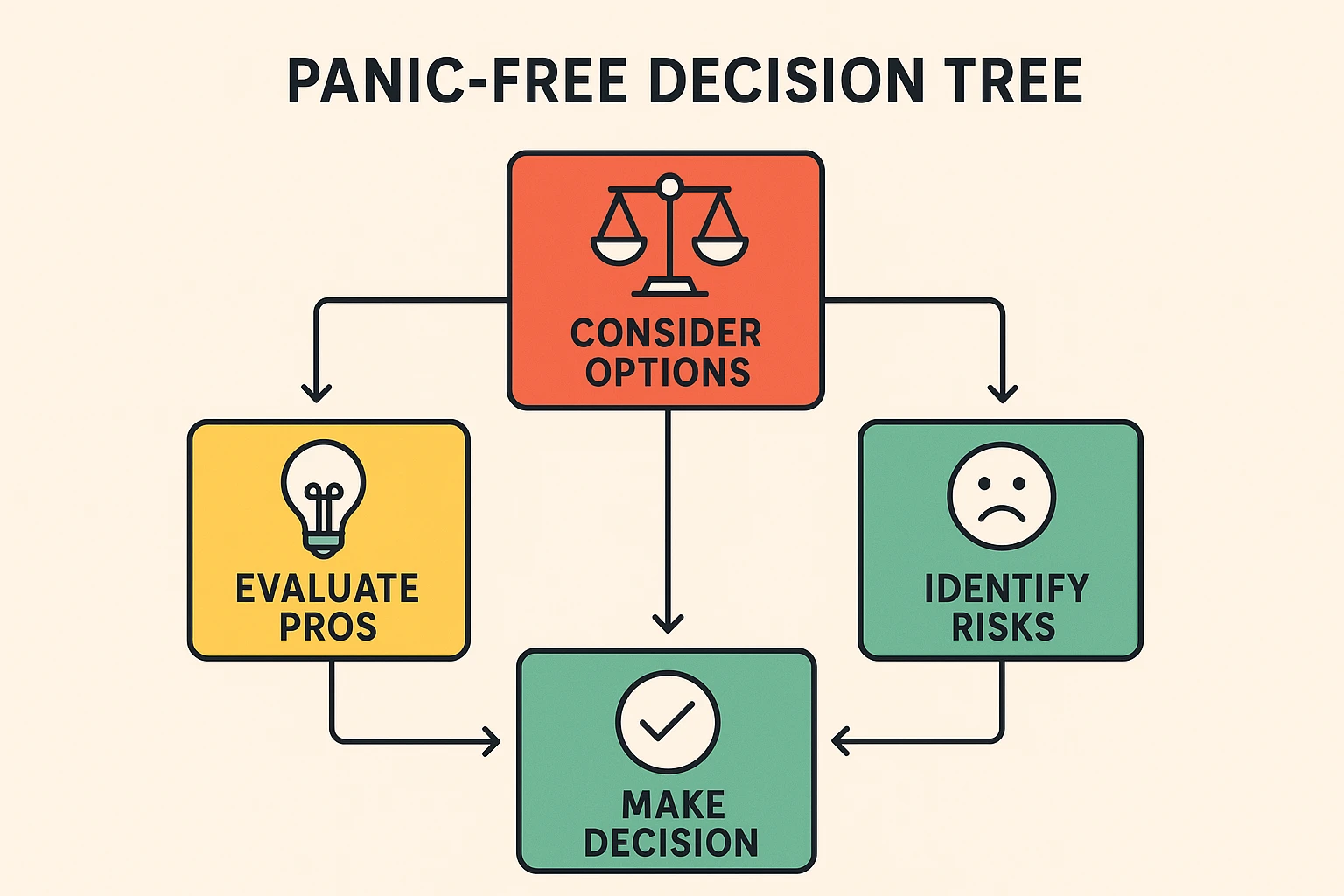
If you are unsure about a company, open a different browser window and search for their name to check their website reputation and reviews before you think about proceeding.
Sometimes, the website is fine, and your computer is the one having a bad day. Before you give up on a website, try these three quick tricks.
This sounds ridiculous, but it is the #1 cause of false alarms. If your computer thinks the year is 2005, it will think every modern security certificate is from the future (which is impossible) or invalid.
Sometimes your browser holds onto old, bad data like a squirrel hoarding nuts.
If a major site like Google or Facebook gives you this error, don’t try to fix it. You can’t. It means they are having a meltdown.
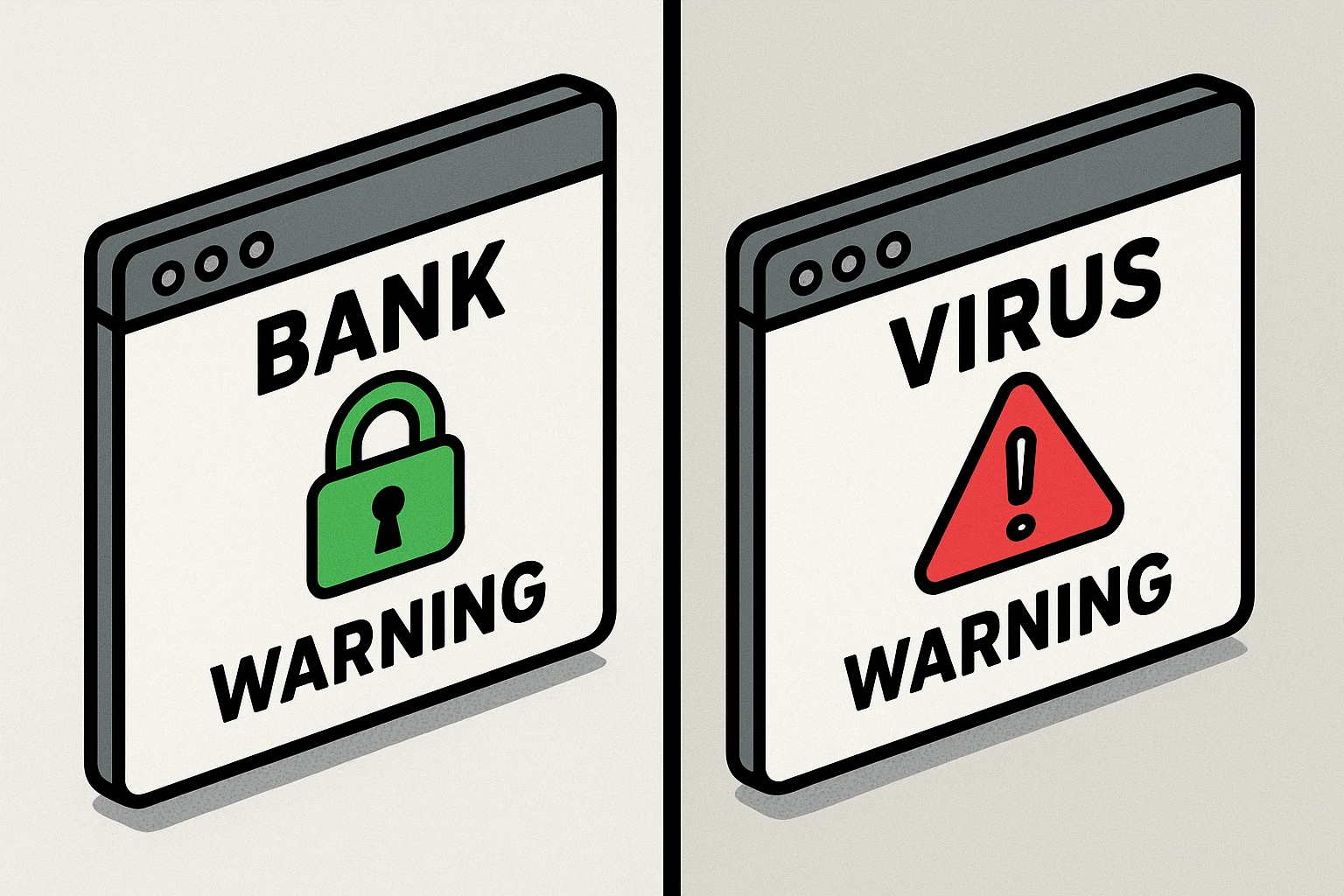
There is a big difference between your browser (Chrome, Edge, Safari) giving you a polite warning and a scammer trying to trick you.
The Browser Warning:
The “Fake Virus” Scam:
The Golden Rule: Real security warnings from your browser will never ask you to call a phone number. If you see a phone number, it is a scam. Close the browser immediately.
Generally, no. “Insecure” usually means the connection isn’t private, not that the site itself is poisonous. As long as you don’t download anything or click suspicious buttons, just looking is usually low-risk.
As devices age, their internal list of “Trusted ID Issuers” gets outdated. Eventually, an old device stops recognizing new security certificates. It’s like trying to use a 1990s ID scanner on a modern driver’s license.
An antivirus won’t fix a broken website certificate. However, good security software can help block malicious sites that might be trying to fake their identity.
The internet is a wonderful place, but it runs on a complex web of trust. When that “Connection Not Private” screen pops up, don’t take it personally. It’s just your browser doing its job—acting as the vigilant security guard protecting you from sloppy paperwork and potential imposters.
Use the traffic light system. If it’s a bank, stop. If it’s a blog, proceed with caution. And if the screen starts flashing and asking you to call a toll-free number, unplug the internet and treat yourself to a cookie. You’ve earned it.
Ready to learn more? Now that you’ve mastered browser warnings, why not check up on the rest of your digital life? Learn how to spot other tricky online situations in our guide on how to verify website safety to keep your browsing stress-free.