Newsletter Subscribe
Enter your email address below and subscribe to our newsletter

By Chris Clark, founder of Senior Tech Cafe
If you clicked on a phishing link, start here. A single click rarely empties a bank account or takes over a computer, and what you do in the next few minutes matters far more than the click itself.
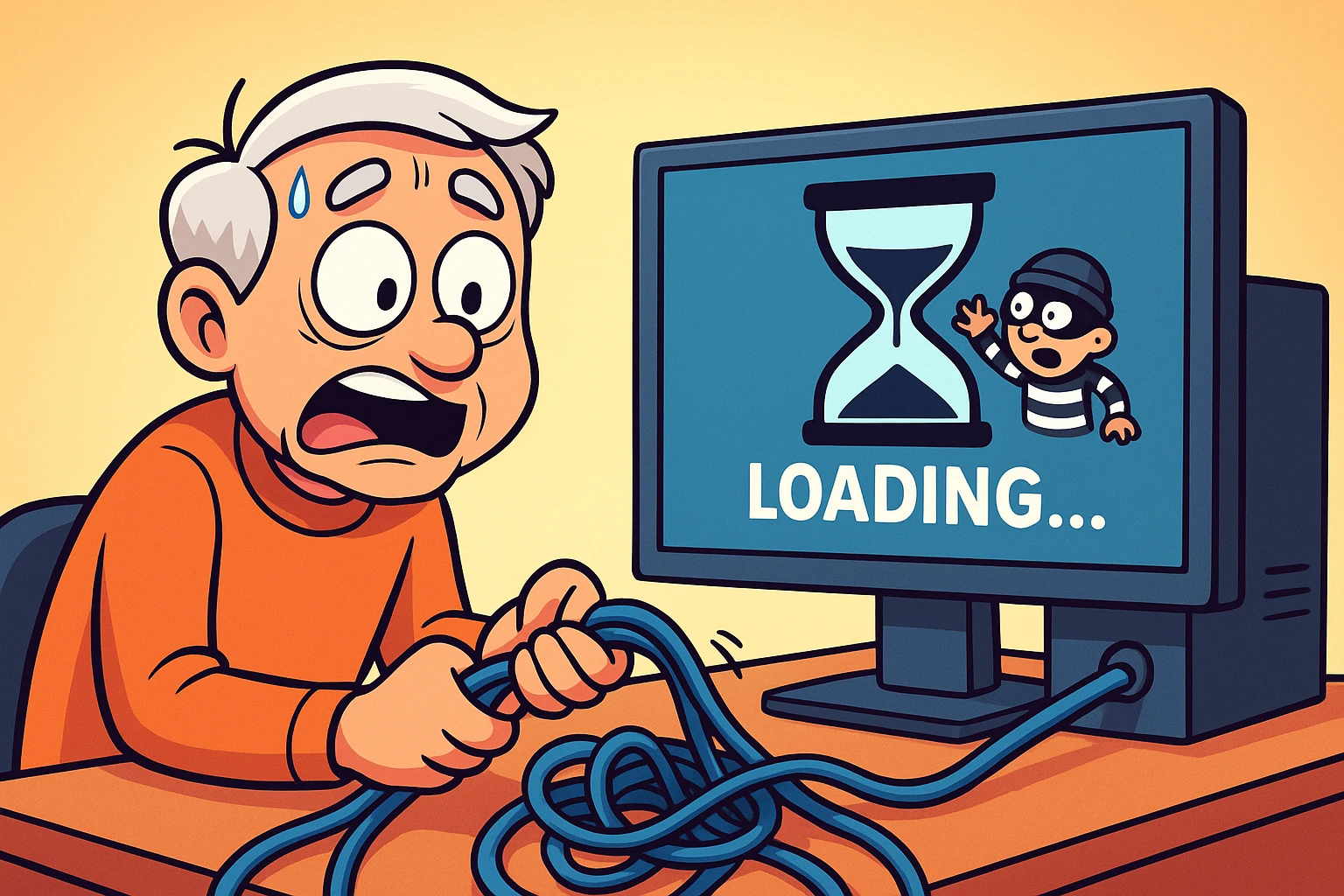
It usually starts innocently. You’re checking your email to see if your grandson finally wrote back (he didn’t), and there’s a message: “URGENT: Your package from The Intergalactic Mail Service cannot be delivered!” You didn’t order anything, but maybe it’s a surprise. So you click. A weird box pops up, the computer starts whirring like it’s preparing for a mission to Mars, and your stomach drops into your slippers. You’ve clicked on a suspicious link, and clearly you just gave the deed to your house to a hacker named DarkLord99.
You didn’t. Scammers rely more on your panic than on their computer skills. Here’s what to do first, in order.
Take these steps in order. If all you did was click and close the page, steps 1, 3 and 7 are all you need.
Usually, clicking a phishing link just opens a web page. The danger comes from what that page wants you to do next, and it’s normally one of three things:
A lot of folks think that the moment they click a bad link, a hacker is watching through the webcam while emptying their bank accounts. That’s not how it usually works. Now and then a flaw in an out-of-date browser lets a page do more, which is one more reason to keep your phone and computer updated. And even a harmless click tells the sender your address works, so expect a little more junk for a while.
Once you’ve disconnected, your computer might start throwing error messages at you. These messages are written by computer programmers, which means they’re completely incomprehensible to normal humans. Here’s a translation.
Windows Security says protection is off. If you see a warning that virus and threat protection is turned off and you didn’t turn it off, treat it as a red flag. It doesn’t mean your computer is destroyed. It means your frontline security guard may have been knocked out, and it’s time to call in the backup, which is the scan below.
Updates are paused. If Windows says updates are paused and you didn’t pause them, that’s another warning sign. Updates often contain the fix for whatever a piece of malware is trying to exploit, so malware has every reason to stop them.
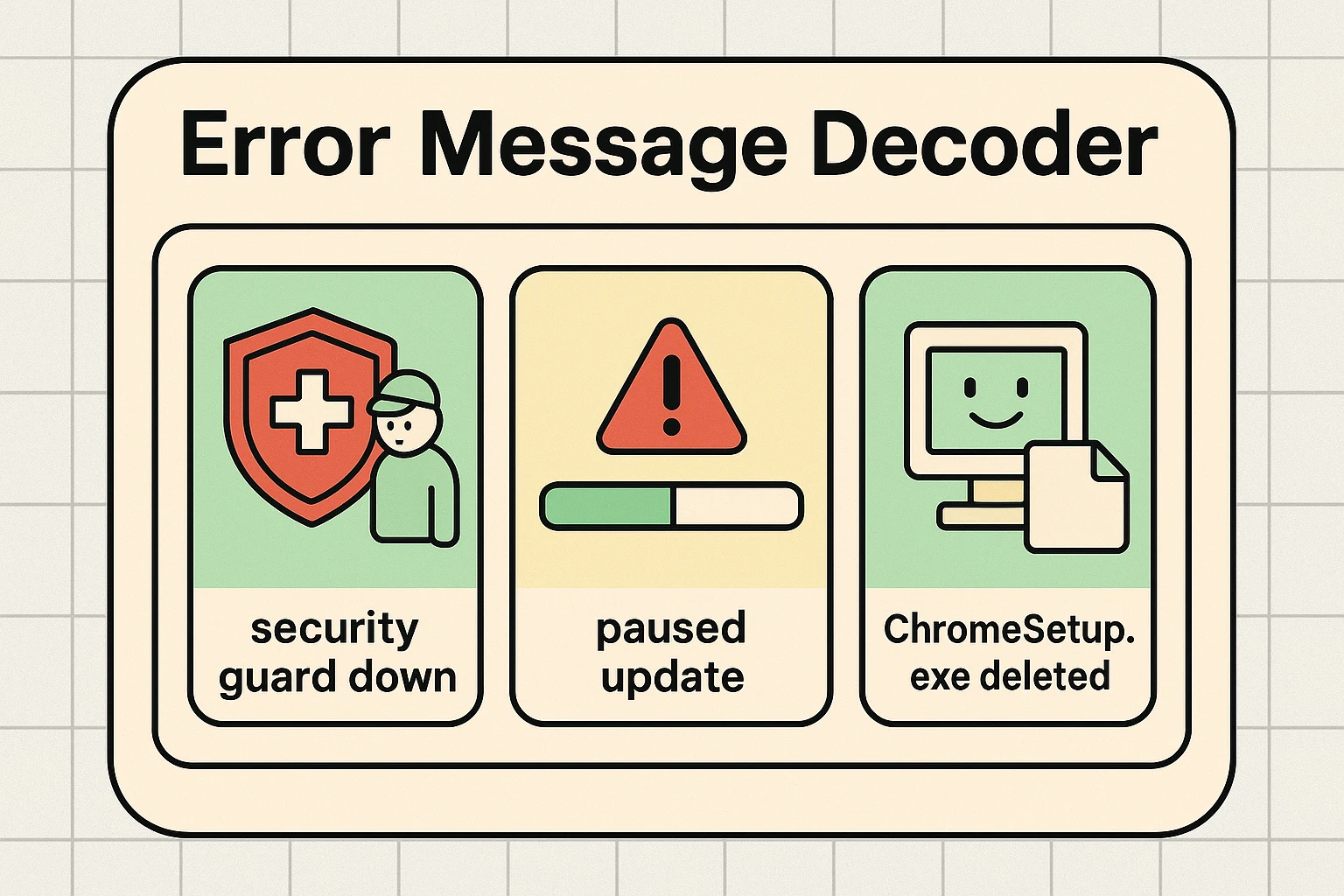
What if you didn’t click “download,” but a file appeared on your computer anyway? That’s called a drive-by download. It’s the internet equivalent of someone tossing a flyer through your car window while you’re stopped at a red light. Just because the flyer is in your car doesn’t mean you have to read it. A downloaded file usually can’t hurt you until you open it, so don’t. Delete it and run the scan below.
Sometimes your computer is doing its job and it still looks terrifying. If Windows Security or your antivirus says it blocked or removed a file, that’s your computer’s immune system at work, not a sign you’ve been hacked. Run the full scan anyway, just to be sure.
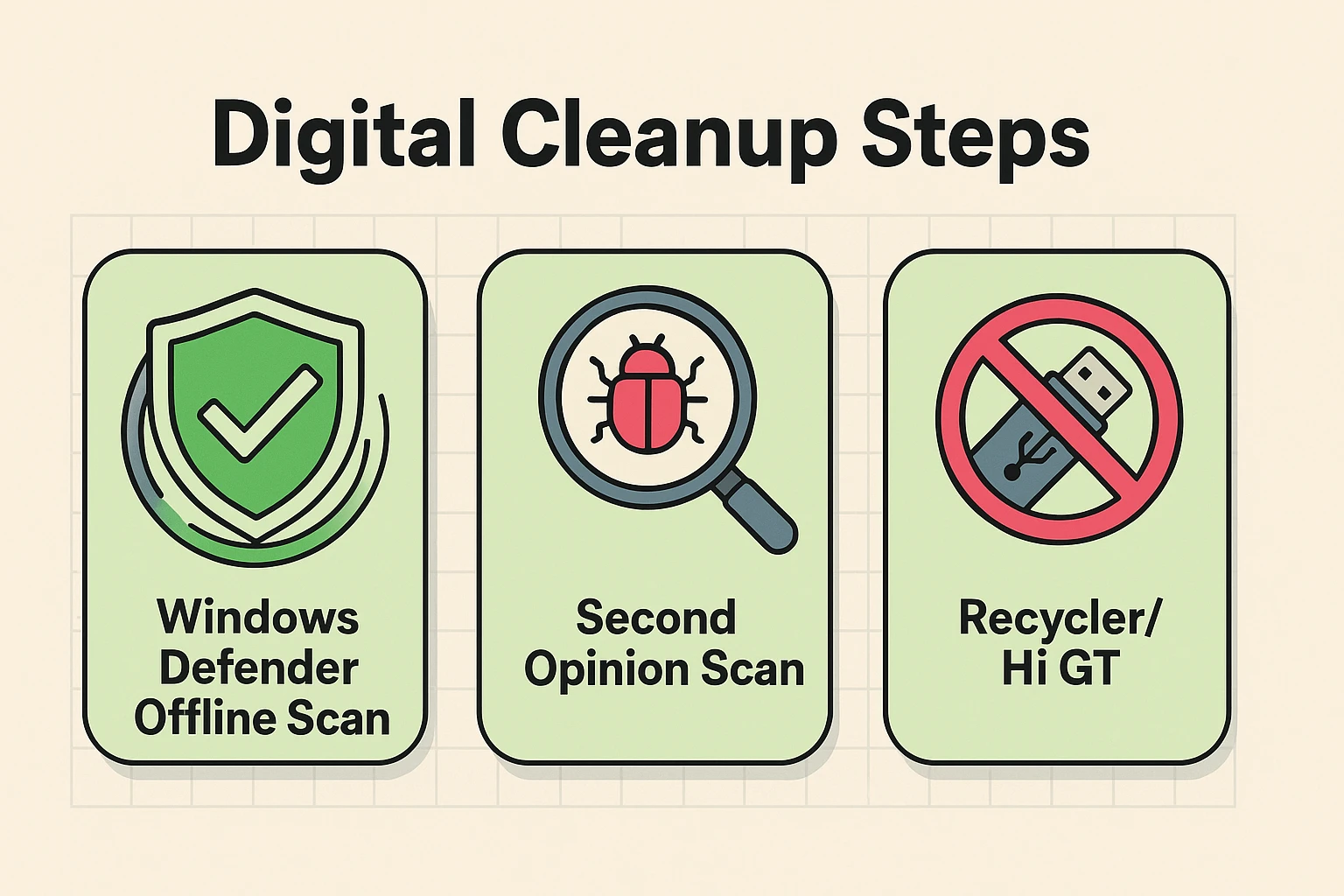
On a Windows computer, run a Microsoft Defender offline scan. It works with the internet still off. It restarts your computer and looks for malware before Windows loads, when it has the hardest time hiding. Save anything you have open first.
When it’s done, the computer restarts on its own. To see what it found, open Windows Security again and look under Protection history. Once you’re back online, a second scan with the free version of Malwarebytes is a good double-check.
On a Mac, built-in protection checks for known malware automatically. Install any waiting macOS update and delete anything you downloaded from the link.
On an Android phone, open the Play Store, tap your profile picture, tap Play Protect, then tap Scan.
On an iPhone or iPad, a click alone almost never installs anything. Close the tab, then clear your browsing data: in Settings, open Safari (on newer iPhones it’s under Apps) and tap Clear History and Website Data. Then install any waiting software update.
Once your scans come back clean, the emergency is over. For the next few weeks, keep an eye on your bank and card statements, and be extra suspicious of follow-up messages, especially any that offer to help you recover from the scam you just dodged.
Going forward, practice the fine art of hovering. Rest your mouse pointer over a link without clicking, and a little box near the bottom of your screen shows where it really goes. On a phone, press and hold the link instead of tapping it. If the address doesn’t match the company, you’ve caught one. Our guide to spotting phishing scams covers the other giveaways.
Almost certainly not. Clicking a phishing link doesn’t damage the computer itself. Unless you opened a file from the link or let someone control your screen, the worst case is usually unwanted software that a security scan can remove. Run the scan, install any waiting updates, and carry on with your day.
Very unlikely. Getting into a webcam takes more than one click on a web page; it usually needs malware you opened or remote access you allowed. If you’re nervous, a sticky note over the lens is a foolproof, zero-tech fix, and a security scan will catch most spying software.
No. Scammers can’t pull money out of your bank account just because you clicked a link. They need your username, password, card number or a one-time code. If you didn’t type any of those into the page, your money is safe. If you did, call your bank using the number on your card.
Email addresses are like phone numbers: eventually, everyone ends up on a list somewhere. It rarely means you were singled out or hacked. More often, your address was part of a huge automated blast sent to millions of people in the hope that a few would click.
If you clicked on a suspicious link on a phone, it usually just opened a web page, and phones rarely install anything without asking first. The risk is typing a password or card number into that page, or installing an app it offers. Close the tab, don’t install anything, and change any password you entered.
Clicking a bad link feels like a disaster. Most of the time it’s a scare, not a catastrophe, and the steps above turn it back into an ordinary Tuesday: don’t type, disconnect if something downloaded, scan, change anything you gave away, and report the message.
Keep your software updated, keep hovering before you click, and keep your sense of humor handy. DarkLord99 is counting on you to panic. For more ways to stay a step ahead, start with our online safety guide for seniors.