Newsletter Subscribe
Enter your email address below and subscribe to our newsletter

Imagine you go to the grocery store to buy prunes. You haven’t told a single soul about this thrilling errand. Suddenly, your phone buzzes with a digital coupon for digestive yogurt. How did it know?
Unless your smartphone is clairvoyant, it is acting like a tiny digital snitch. You aren’t an international spy, but that doesn’t mean you want every application on your phone knowing exactly which store aisle you’re browsing. For many of us, smartphones sometimes feel less like helpful gadgets and more like overly attached private investigators.
Don’t worry, you don’t need to throw your phone into the nearest river to get some privacy back. Today, we are going to decode the mystery of location services without using a single bit of tech jargon. By the end of this guide, you’ll be back in the driver’s seat, showing that tiny computer exactly who is boss.
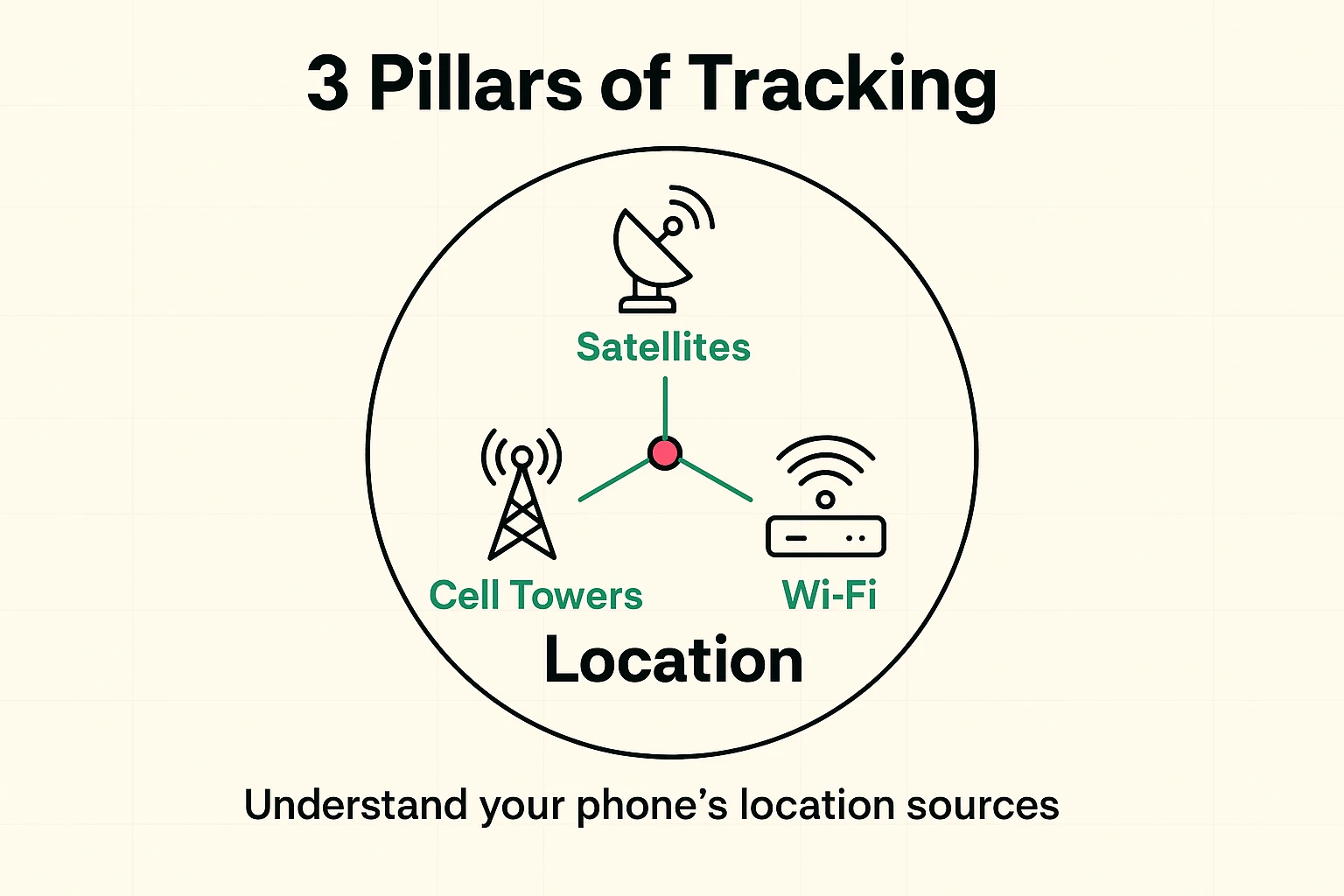
Let’s clear up a common myth right away: “location tracking” isn’t just one magic feature. Your phone actually uses a three-part tag team to figure out where you are at any given moment. First, there’s your GPS. Think of this as satellites looking down from space, trying to spot your phone like a cosmic game of “Where’s Waldo.”
Second, we have cell towers. These act like the local post office, checking in with your phone every time it pings a nearby tower to roughly estimate your general neighborhood. Finally, there’s your Wi-Fi connection. Even if you aren’t actively connected to the internet, your phone sniffs out nearby Wi-Fi routers like a digital hound dog. If your phone sees your neighbor’s unique Wi-Fi network, it instantly knows you’re sitting in your living room.
You might be thinking, “But I need my weather app to tell me if I should bring an umbrella!” You are absolutely right. However, your weather app only needs to know what city you’re in, not the exact chair you’re sitting in.
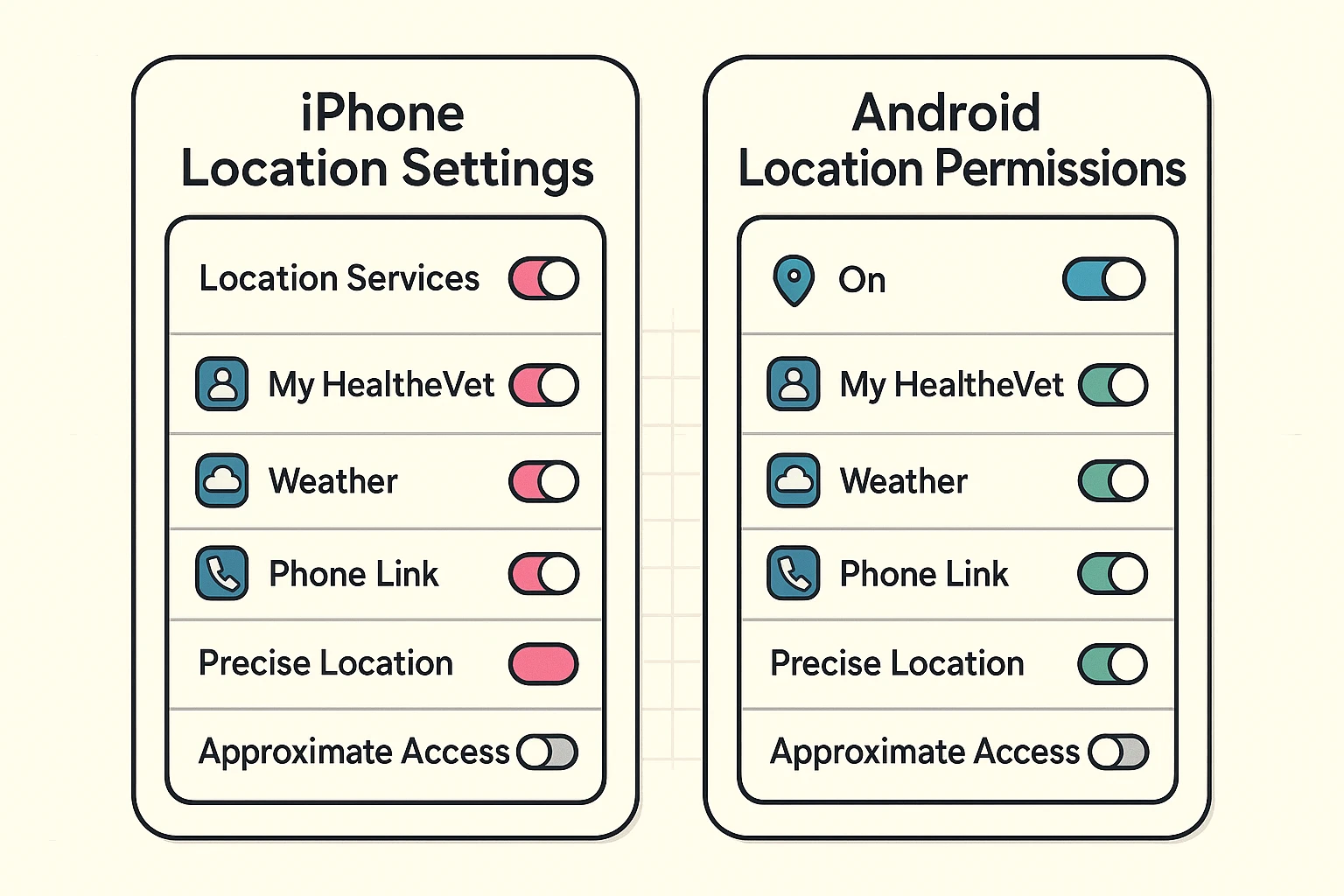
Both iPhones and Androids now offer a brilliant feature that lets you choose between “Precise” and “Approximate” location. Giving an app your precise location is like giving them your exact house number and the key to the front door. Giving them your approximate location is like casually saying, “Oh, I’m somewhere in Chicago.” It is the ultimate sweet spot for maintaining your privacy while still letting helpful apps do their jobs.
It’s time to play privacy detective. Whether you have an Apple or an Android, the process is simpler than programming a VCR. If you want a comprehensive look at how to give apps permissions, we have a great broader guide, but let’s focus specifically on location tracking today.
Grab your iPhone and tap on the little gear icon for Settings. Scroll down until you see Privacy & Security, then tap Location Services. Here you will see a list of every app that wants to know your whereabouts.
You’ll see options like “Never,” “Ask Next Time,” or “While Using the App.” A good rule of thumb is to beware the “Always” setting. “Always Allow” basically means the app has your blessing to follow you to bed, the bathroom, and everywhere in between.
On your Android device, open your Settings app (usually a gear icon as well). Scroll down and tap on Location, then select App location permissions. You’ll see your apps neatly categorized by who is allowed to track you all the time, only while in use, or not at all.
Just tap on any app to change its blue pin setting. If a simple solitaire game is demanding to know your location 24 hours a day, it’s definitely time to revoke its privileges!
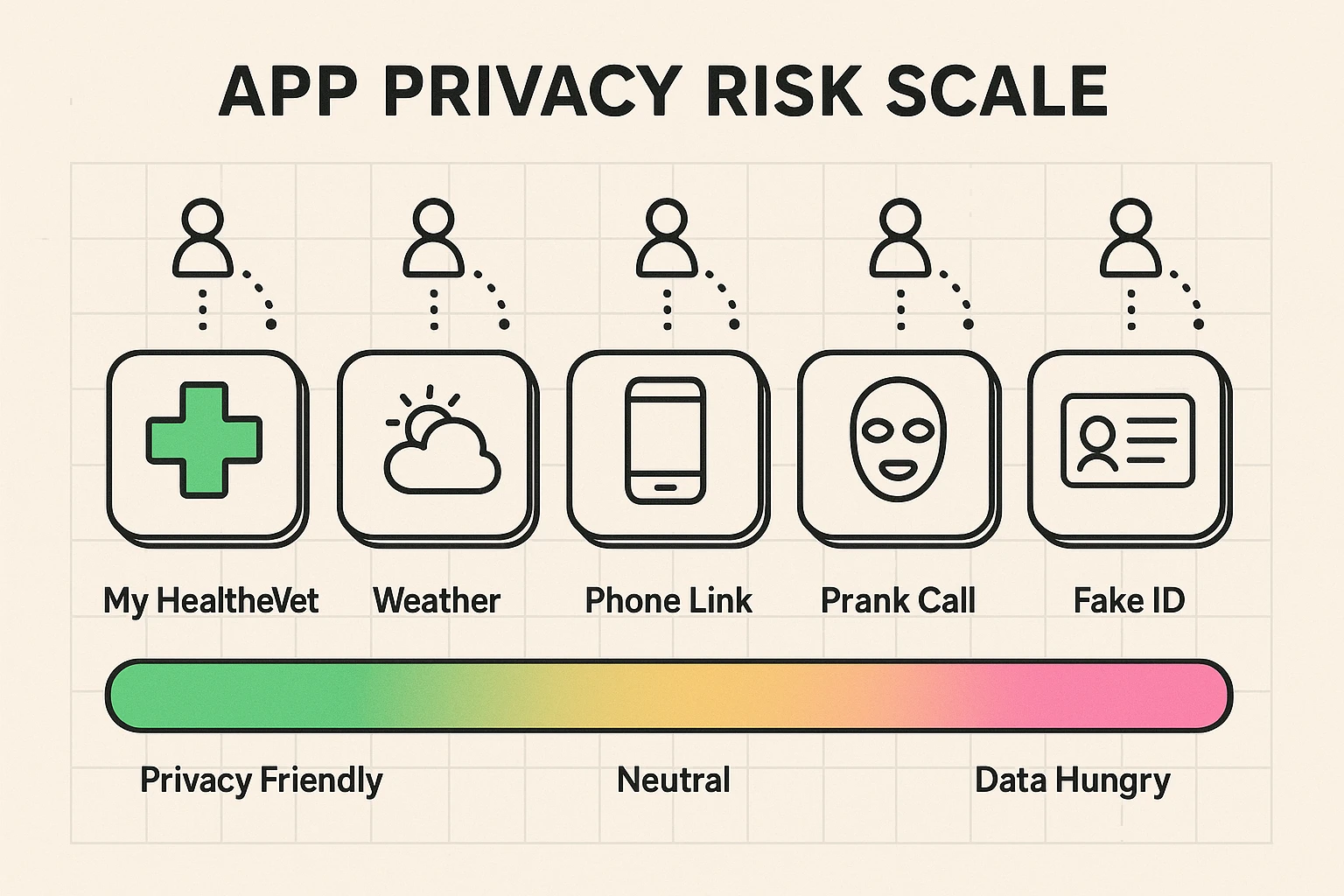
Not all apps handle your location data with the same level of respect. If you use the VA’s “My HealtheVet” app or other medical portals, you might worry about location tracking being tied to your sensitive health data. The good news is these specific apps are generally highly secure, but it’s always smart to set their location access to “Only While Using” just to be safe.
Next, let’s talk about connecting your phone to your home computer. If you use features like “Phone Link” on a Windows PC, be careful. This handy tool mirrors your phone’s notifications on your big screen, which is great until you share that computer with a spouse and a location-based text pops up revealing you just bought them a surprise anniversary gift!
Finally, be incredibly wary of “prank call” or “fake ID” apps. While they might seem like harmless fun for the grandkids, they are frequently notorious data-harvesting tools disguised as jokes.
Many seniors graciously share their location with adult children for safety and peace of mind. But sometimes, you just want to go to the casino or buy a giant tub of ice cream without getting a text saying, “Mom, what are you doing at Dairy Queen at 10 AM?”
You don’t have to start a family feud to get a few hours of peace. You can temporarily turn off location sharing in apps like “Find My” (Apple) or “Google Maps” (Android). If they ask why they couldn’t see you, the old “my battery was dying so I put it in Airplane mode” excuse works like an absolute charm. We won’t tell if you won’t.
Taking control of your phone shouldn’t be a frustrating full-time job. Try building this simple habit: once a week, maybe on a Sunday while you’re enjoying your morning coffee, take five minutes to do a quick “Privacy Audit.”
Scroll through your location settings and look for anything suspicious. If you haven’t used an app in months, politely turn its location access off. If it genuinely needs it the next time you open it, the app will ask you again. It’s like doing a digital spring cleaning, but without the dust bunnies!
Yes! This is the ultimate “Safety Toggle” that brings huge peace of mind. Emergency services have a special, built-in bypass system. If you dial 911 or use your phone’s SOS feature, your device will temporarily turn its location features back on so first responders can find you. You can be entirely private without being in danger.
Not completely, which is a common misconception! While Airplane Mode cuts off your cellular and Wi-Fi connections, your phone’s GPS chip can still passively receive satellite signals. Furthermore, the second you turn Airplane Mode off, your phone immediately reports its “last known location” to any app waiting for an update.
On both iPhones and Androids, a little arrow or teardrop-shaped pin icon appearing near your battery meter is your phone’s way of tapping you on the shoulder. It literally means, “Hey, an app is currently looking at your location right now.” If you see it and you aren’t actively using a map or a weather app, it’s time to check your settings!
Your smartphone is a wonderful tool, but remember that it works for you, not the other way around. By taking just a few minutes to adjust your settings, you can enjoy all the benefits of modern technology while keeping your personal whereabouts strictly personal. Ready to master even more of your phone’s hidden secrets? Keep exploring Senior Tech Cafe, and we’ll help you navigate the digital world with confidence, humor, and a whole lot less frustration.